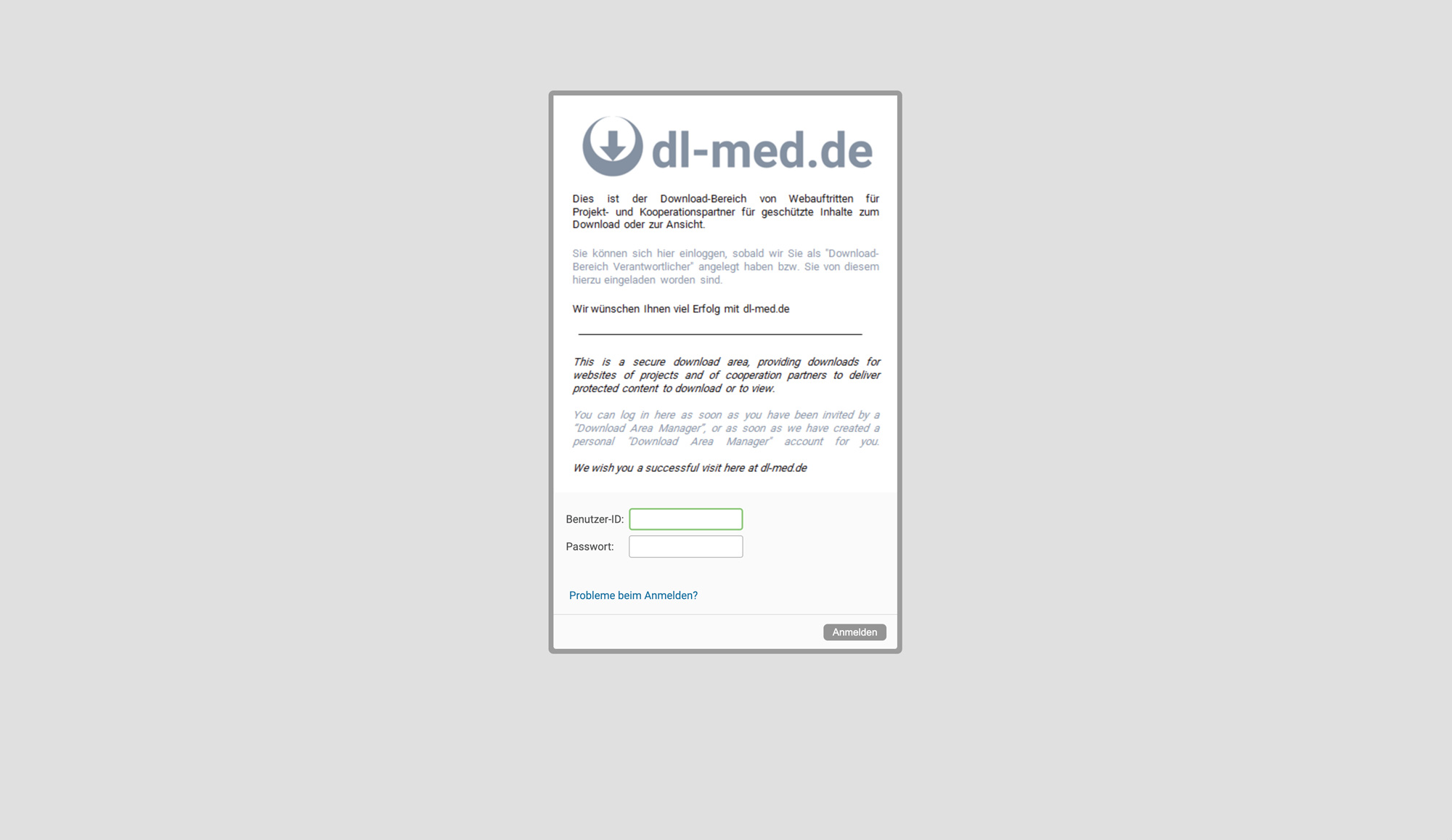
With the dl-med platform, employees of the hospital have the option of making documents available with password protection. It replaces the password-protected areas offered in the old WCMS Fiona. Like KUM-Teams, dl-med is approved under data protection law.
Further information
Just like KUM-Teams from the manufacturer Novell onPrem
differs from KUM-Teams in the following points:
Addition of new users by the manager of a download area (administration)
only dl-med folders (files) can be created and documents can be uploaded to them
Interface (branding) + what you can see
only the manager can add or delete folders. Users can only download the documents
Our support is limited exclusively to the creation of a client. In the course of our support, we can only respond to questions from you that we have developed through our own use of the product.
Working with dl-med
For employees of the clinic
Access to dl-med is possible for employees of the hospital with the HELIOS ID and the"external password".
The HELIOS ID with external password is always set up for every employee of the hospital. If you do not know your ID, you can reset your password in the IT portal at any time after logging in under the menu item "CHANGE EXTERNAL PASSWORD".
The access / account to dl-med must also be activated via the IT portal after logging in under the menu item "ROLLS" and is then available after approx. 6 - 8 hours and is the same as KUM-Teams. Therefore, please activate the account for KUM-Teams if you have not already done so.
External users can be invited by the management of a download area. Please contact the relevant management.
Once the line has been added or approved, the external user will receive an automatically generated e-mail from dl-med with the subject "Activation of your created account". Here you can confirm the registration of your account.
Write an e-mail to WAD.support@klinikum.uni-muenchen.de with the subject "I would like to set up a dl-med download area". We also need the following information:
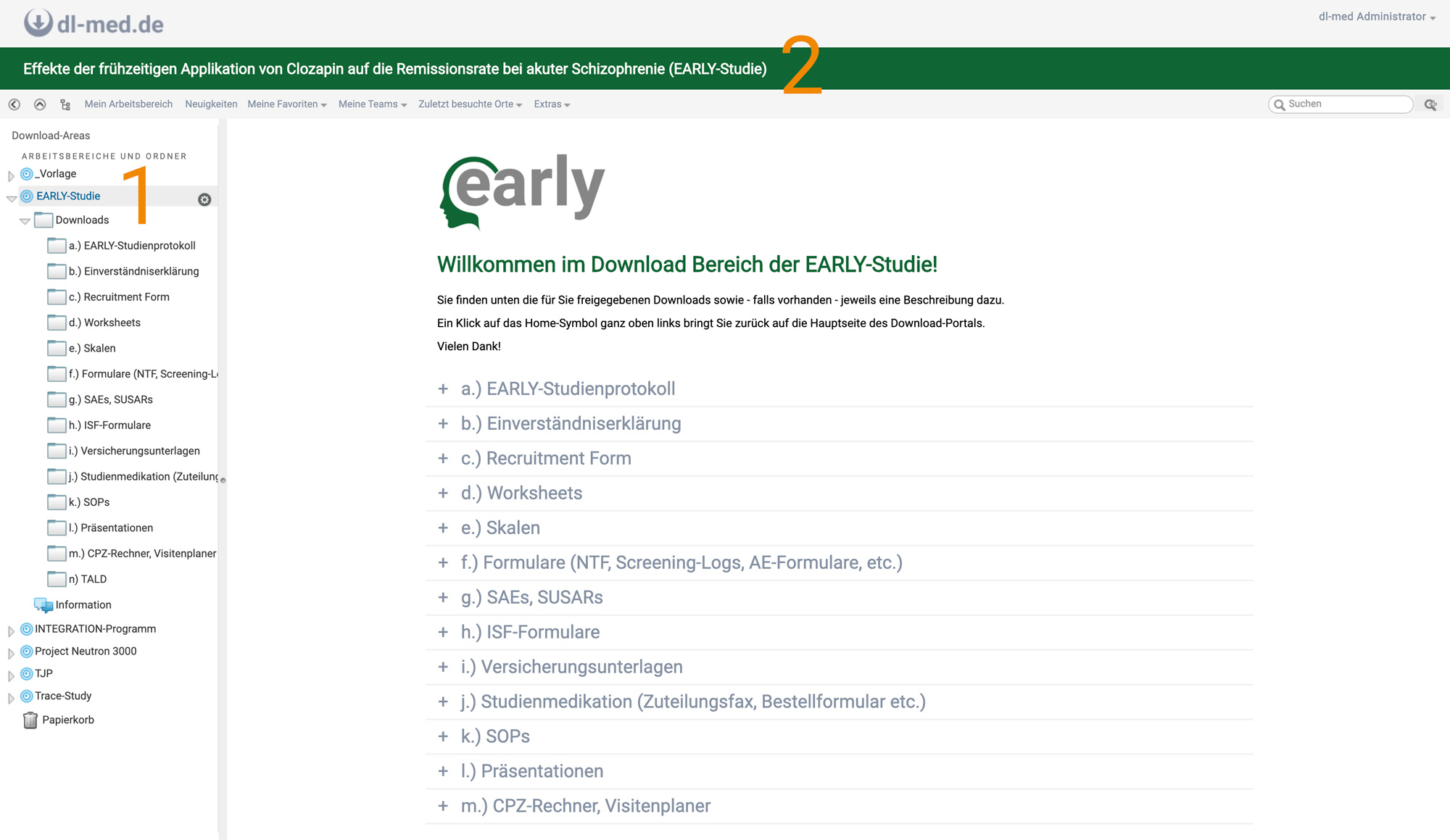
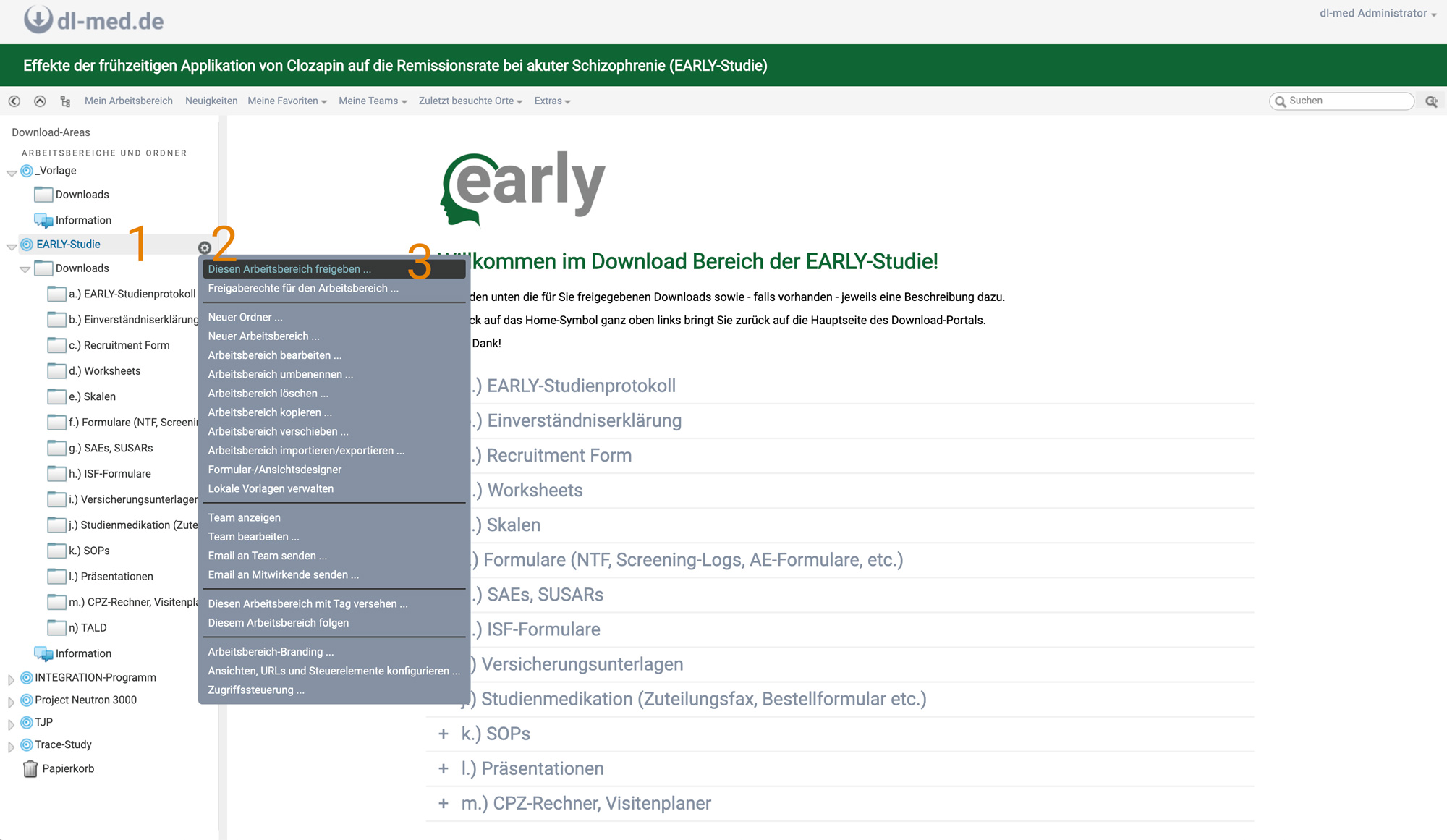
Title of the download area (short and long) (1 & 2), please note that the title must contain the abbreviation/permission of your website as a prefix and the project or download area name. In other words: <institution abbreviation>-<project or download area name>
Example: "EARLY Study" or "MIT Documents", etc.
Head of the download area (must be at least one employee of the hospital)
Award color (3)
If a logo is available, we can integrate it (4)
Internal and external users (you can also add these yourself)
if already available: folder structure with names of the folders (5)
Description text (6)
We will create the desired download area for you within three working days and give you administration rights.
You will receive an e-mail as soon as your download area has been created. You can now add further folders to the download area and fill them with documents. You can also add internal and external users.
dl-med Übersicht für Leitung
Overview of line(s)
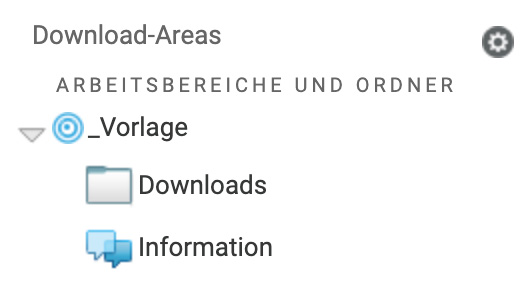
The following components are available in dl-med:
Download area (main folder)
downloads
Download information
Overview for users
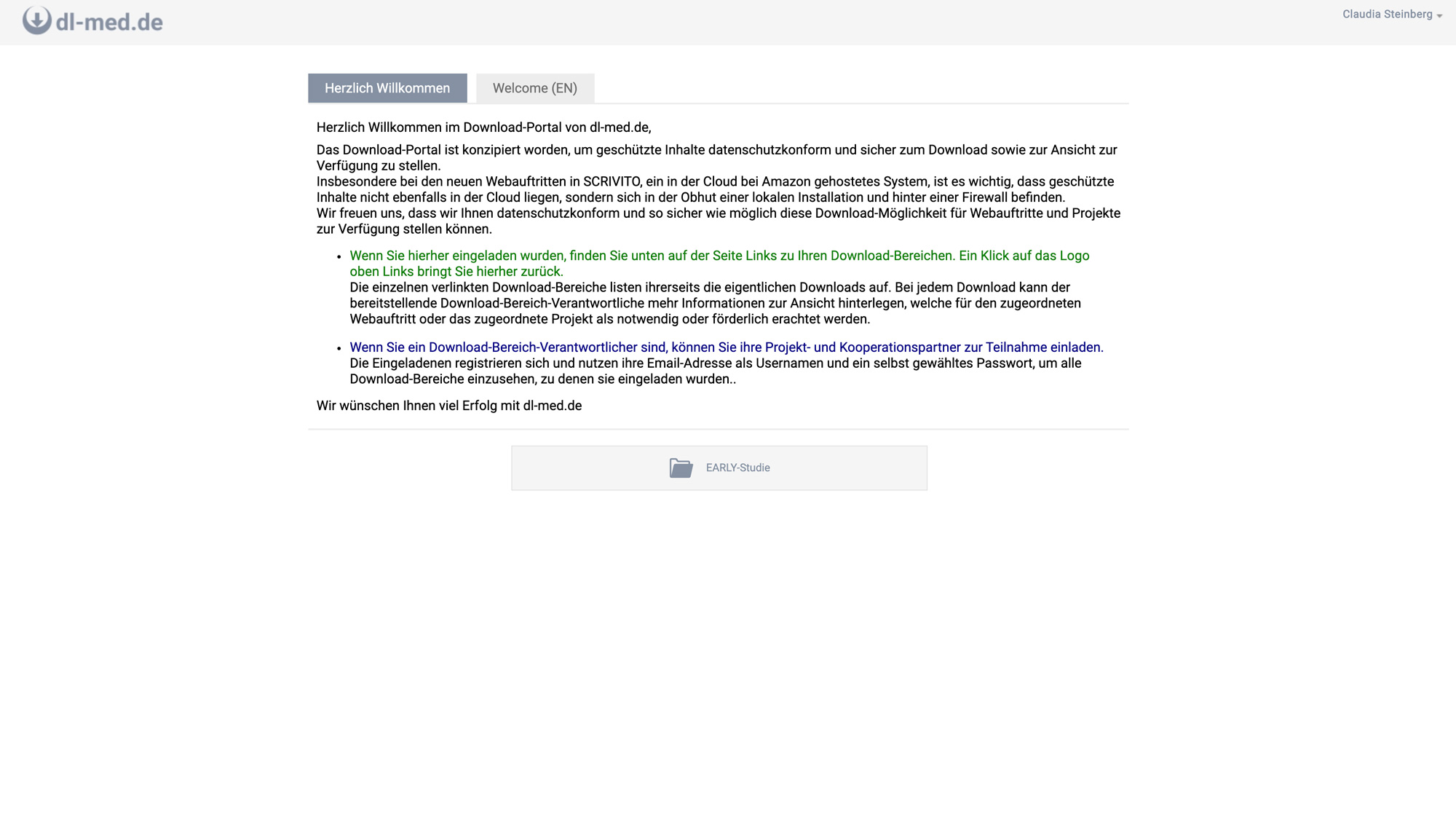
Users receive an overview page on which the detailed title, a welcome or information text and the folders provided by the management with the underlying documents (accordion) can be seen.
dl-med Übersicht nach Login
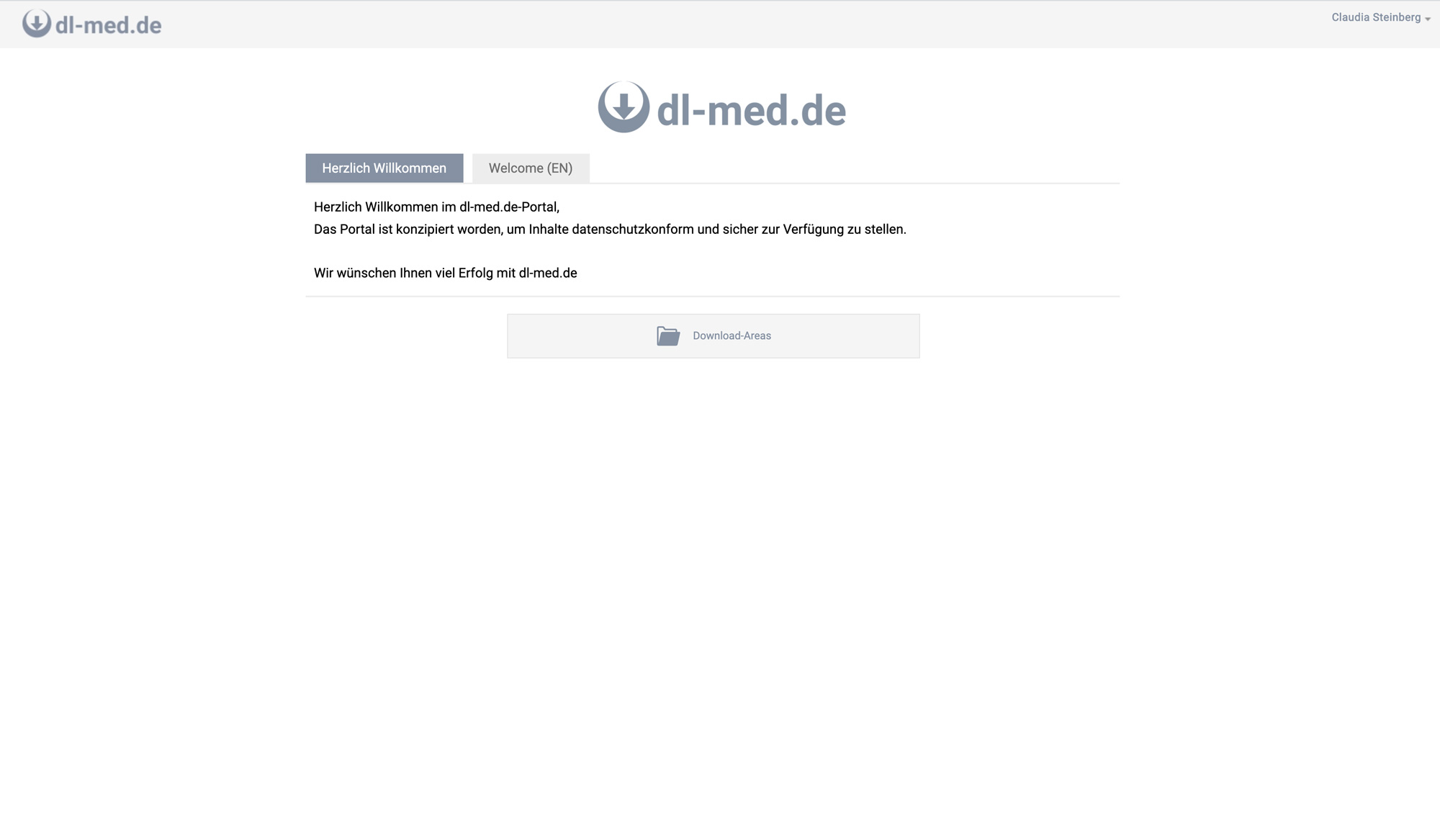
dl-med Download-Areas
Create DL-Med files
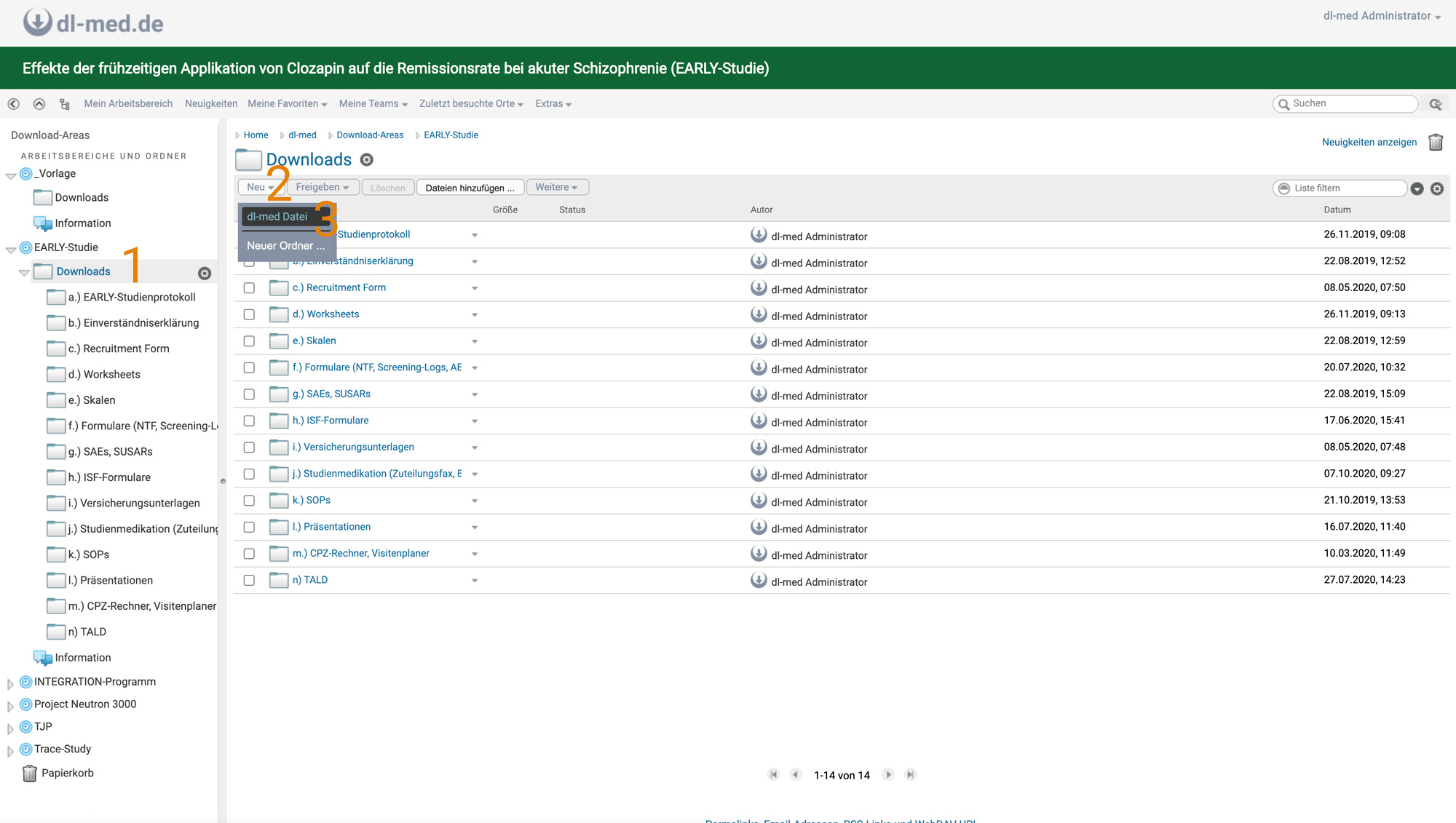
Files can be created directly under Downloads:
Select the "Downloads" folder (1)
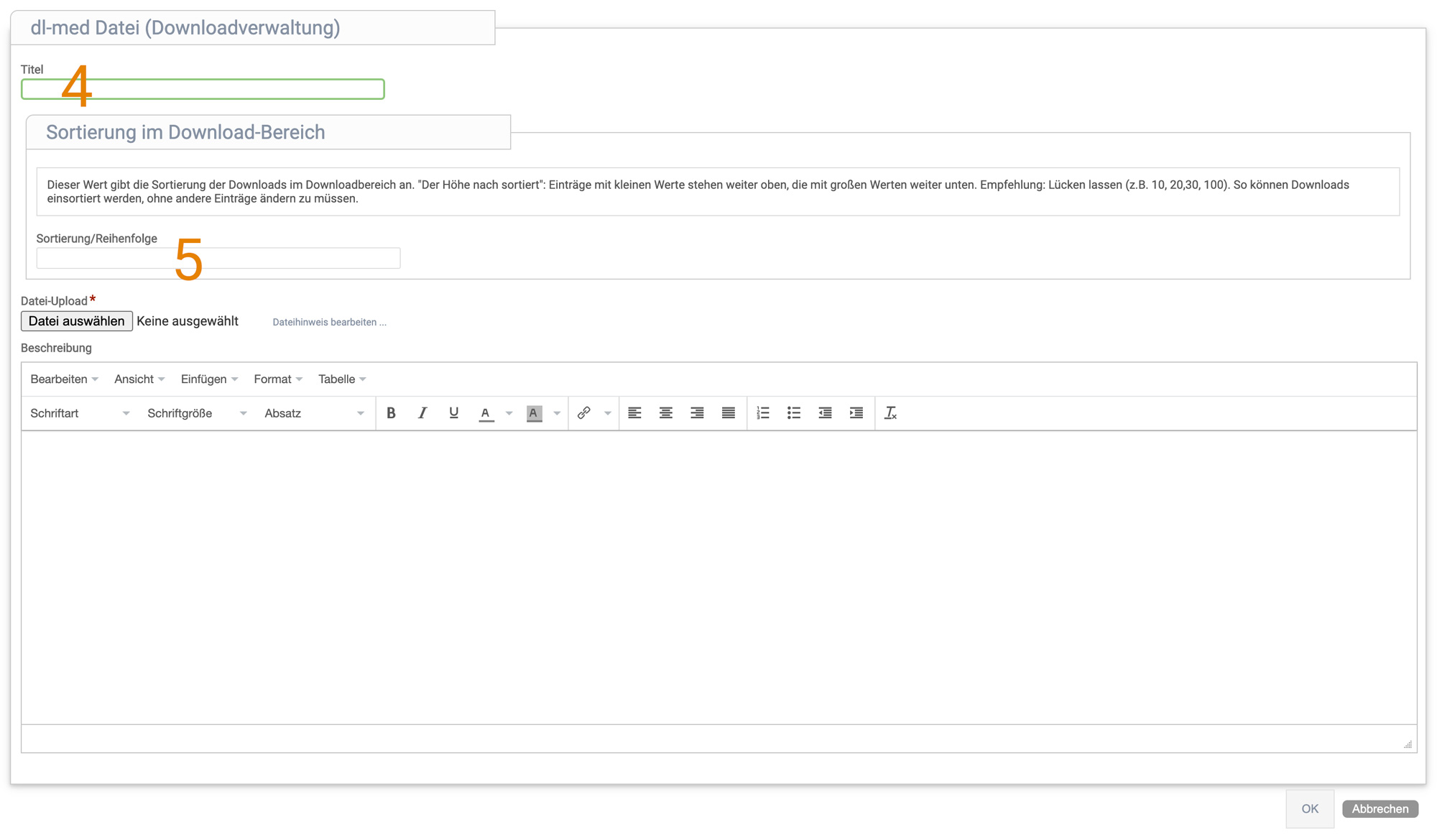
Click on the "New" button in the content area and select "dl-med file" (2 & 3)
Enter the title of the DL-Med file (you can specify the order in the Order field) (4 & 5)
Use the "Browse" button under File upload to upload the desired file (this file is automatically linked in the main folder/content area)
dl-med neuer Download-Ordner
dl-med Downloadverwaltung
Add folder
Additional structure folderscan be created under Downloads:
Select the "Downloads" folder (1)
Click on the "New" button in the content area and select "New folder...", enter folder name (2 & 3)
Folder is created
Visibility of the folder in the content area/main folder
So that the folder is not only displayed in the navigation, which is only visible for the line(s), but also in the content area, the top work area must be adapted accordingly:
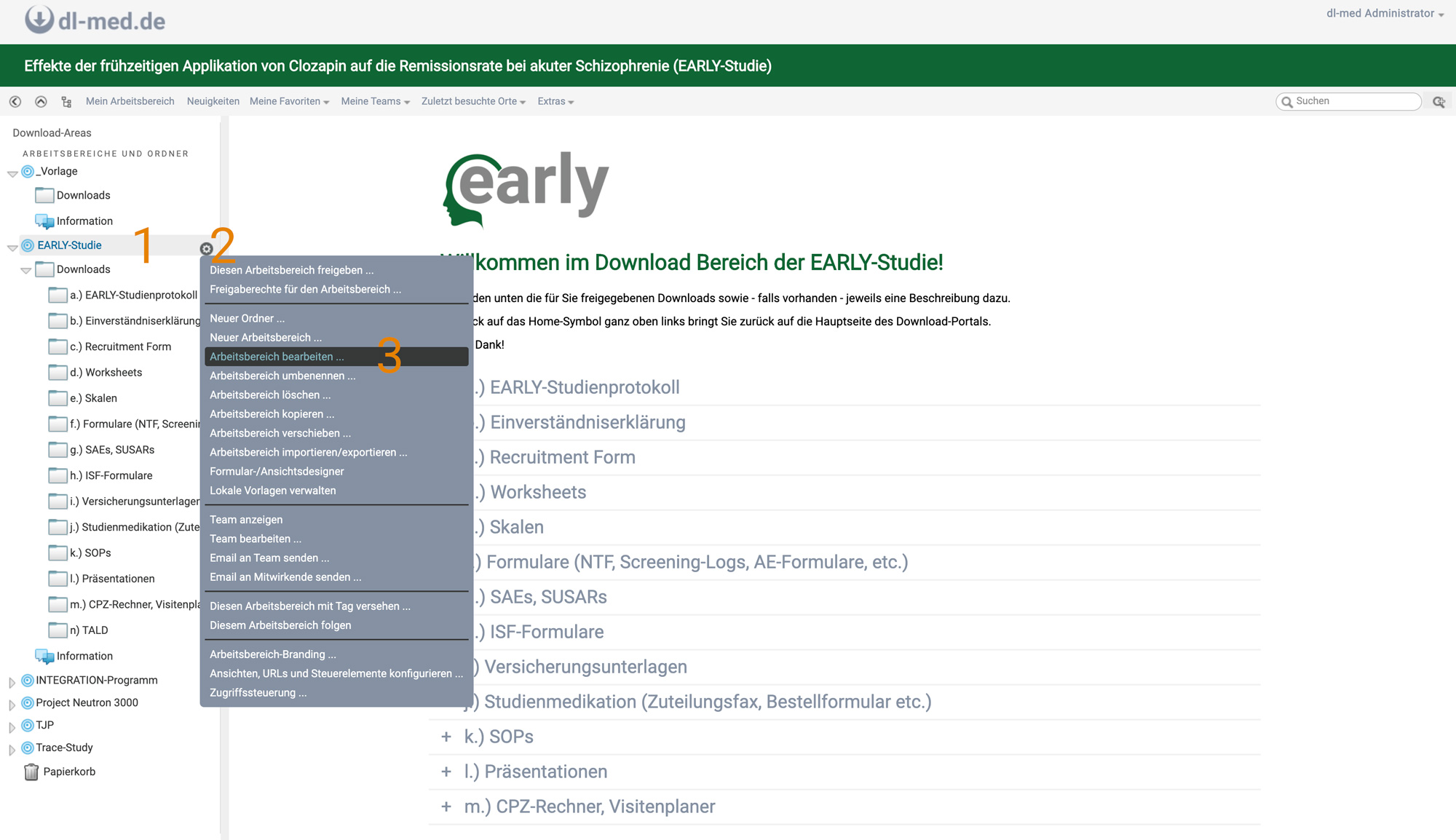
Click on the main folder (1)
Select "Edit workspace" in the properties (2 & 3)
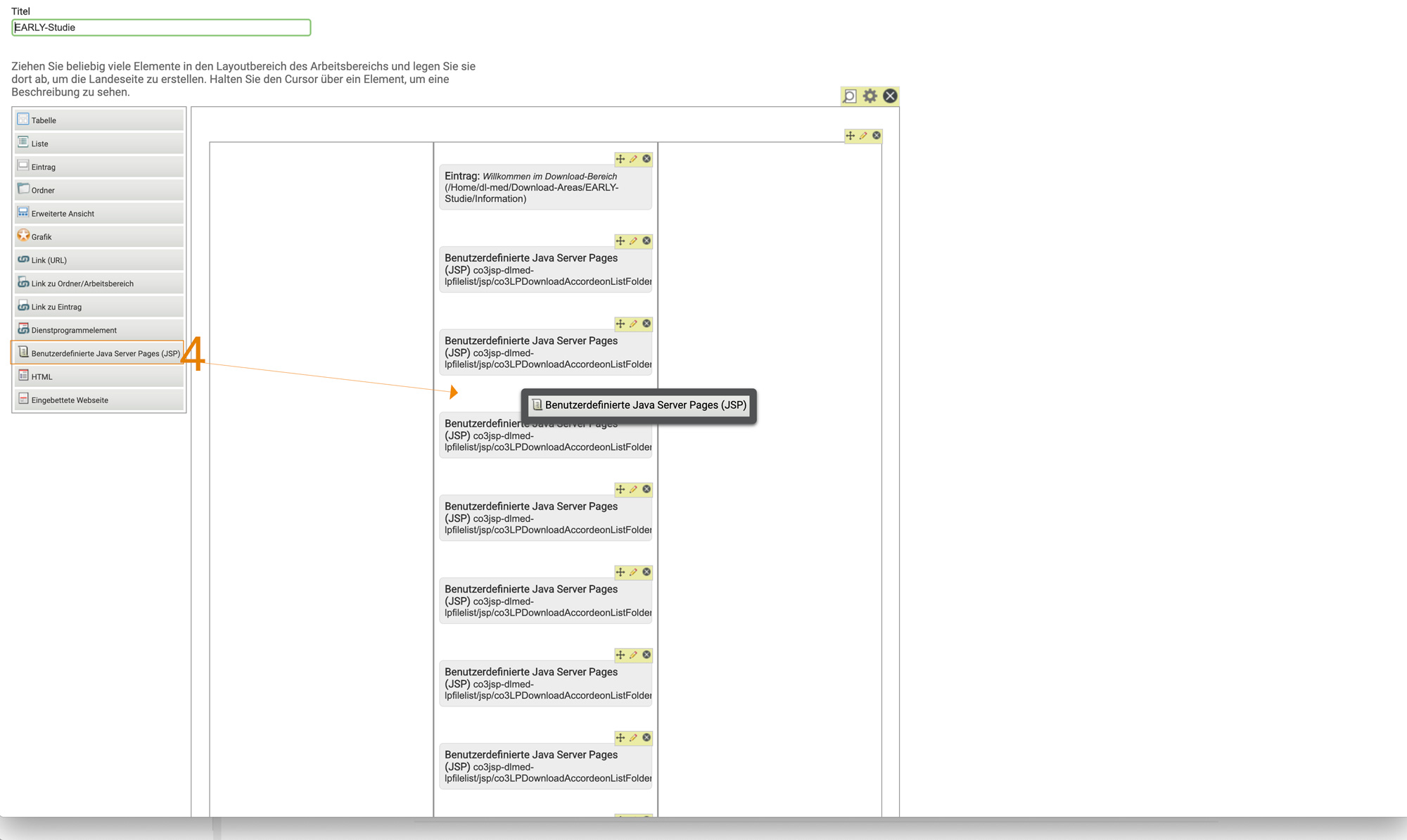
In the layout area, click on "Custom Java Server Page (JSP)" in the left-hand list and drag it to the last position (below the existing JSP) in the middle column (4)
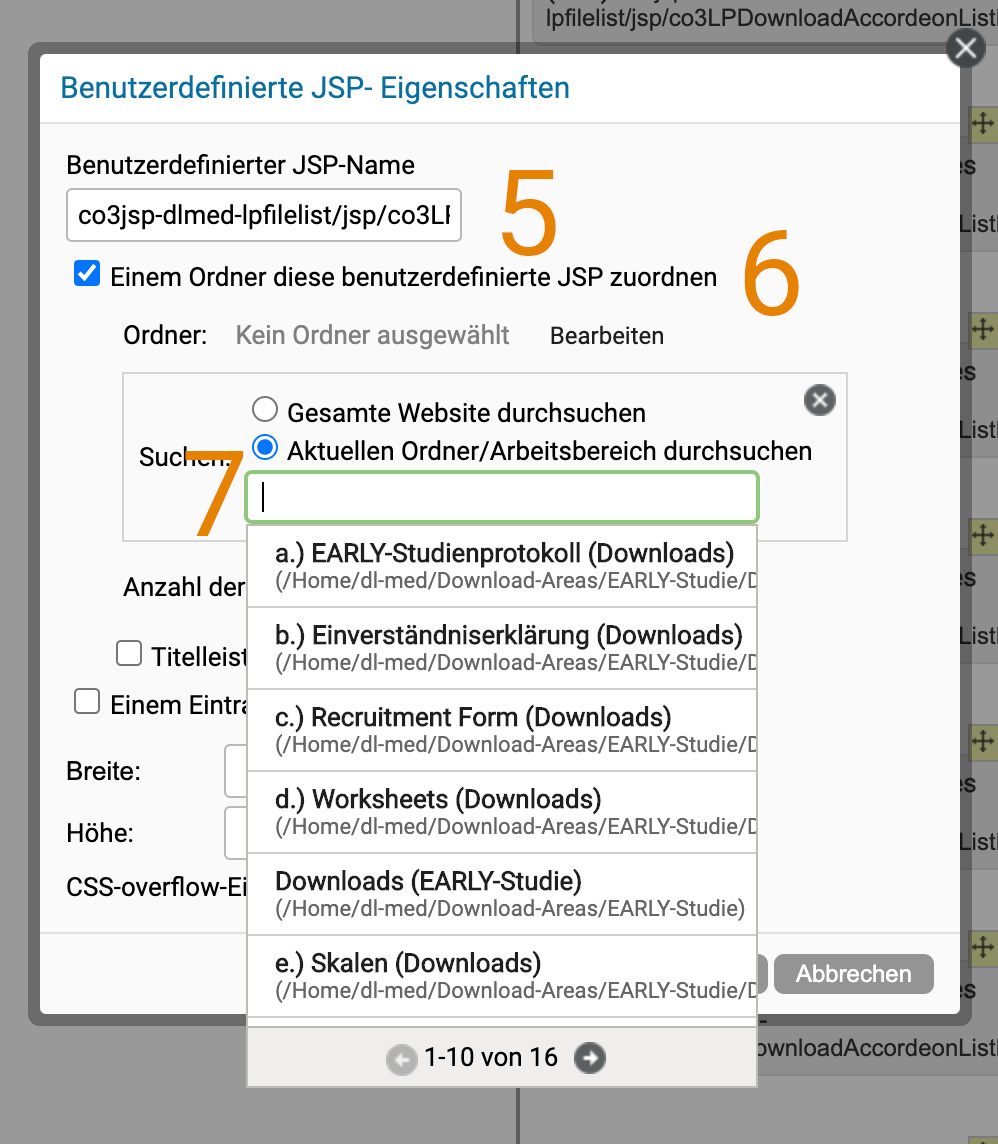
Insert the following "co3jsp-dlmed-lpfilelist/jsp/co3LPDownloadAccordeonListFolder.jsp" under "Custom JSP name" (5)
Check the box "Assign this user-defined JSP to a folder" (6)
Click on "Edit" and make a space in the empty field (this means that all folders that are created below my download area are displayed) (7)
Select the desired folder from the list
For "Number of entries to be displayed:", "100" must be entered so that the entries below the folder are also displayed.
Click on the "OK" button
dl-med Arbeitsbereich bearbeiten
dl-med JSP anlegen
dl-med jsp-Element konfigurieren
Upload files to folder
Additional files can be uploaded within a folder:
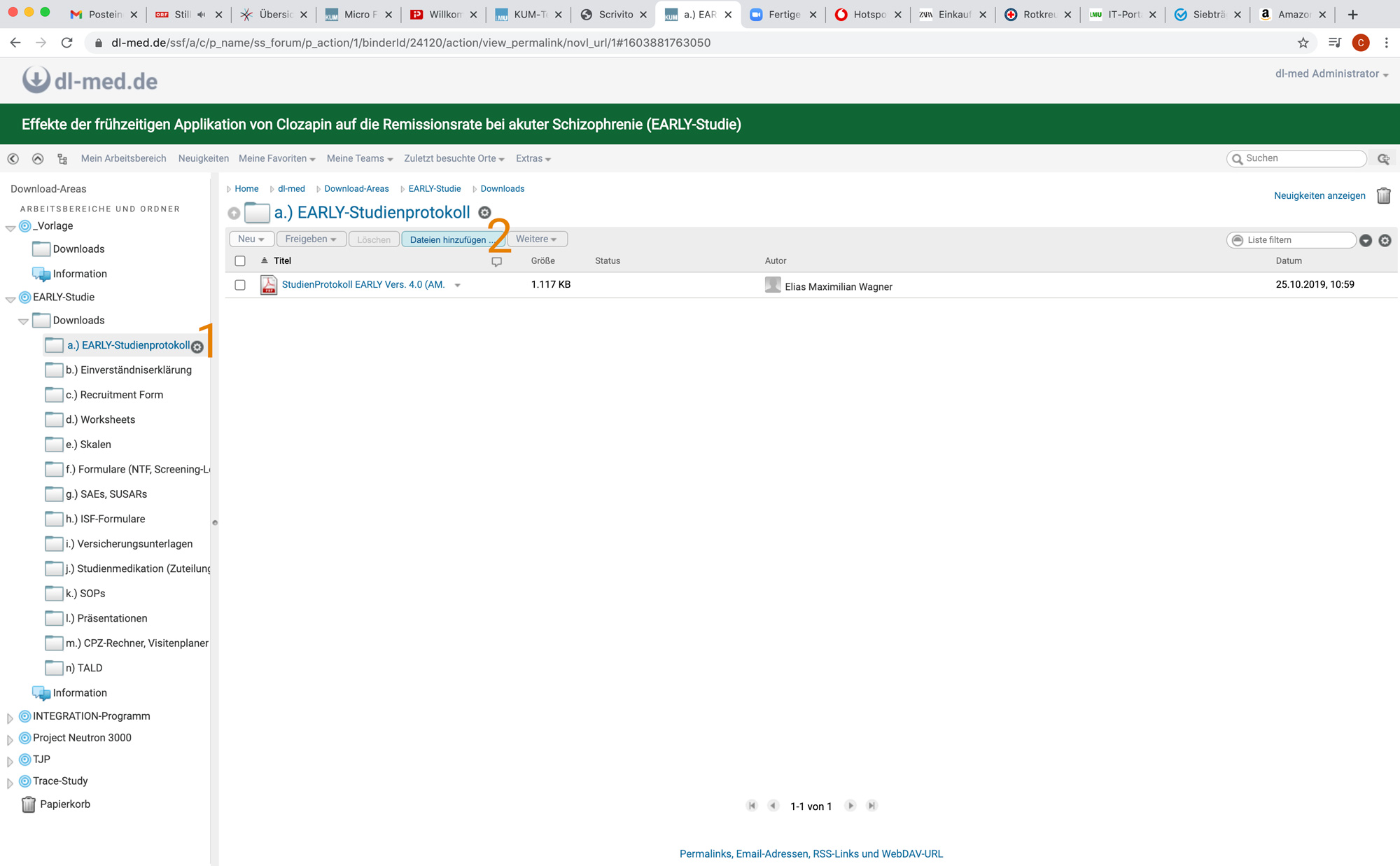
Select the relevant folder (1)
Click on the "Add files" button in the content area (2)
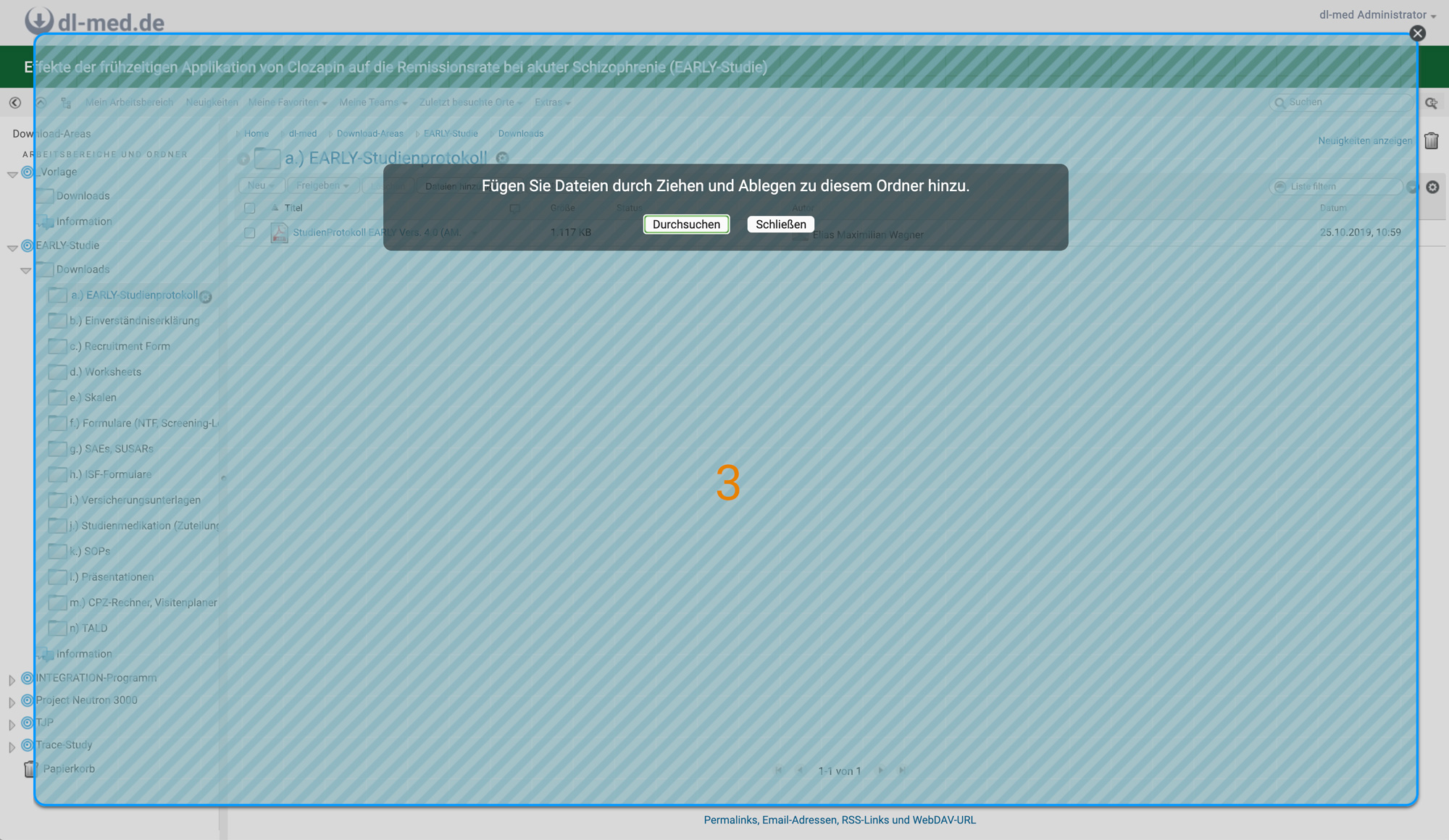
Drag & drop documents into the content area (3)
dl-med Datei hinzufügen
dl-med Datei via Drag & Drop
Delete folder and / or file
Only the manager of a download area can delete folders and/or files.
Delete folder
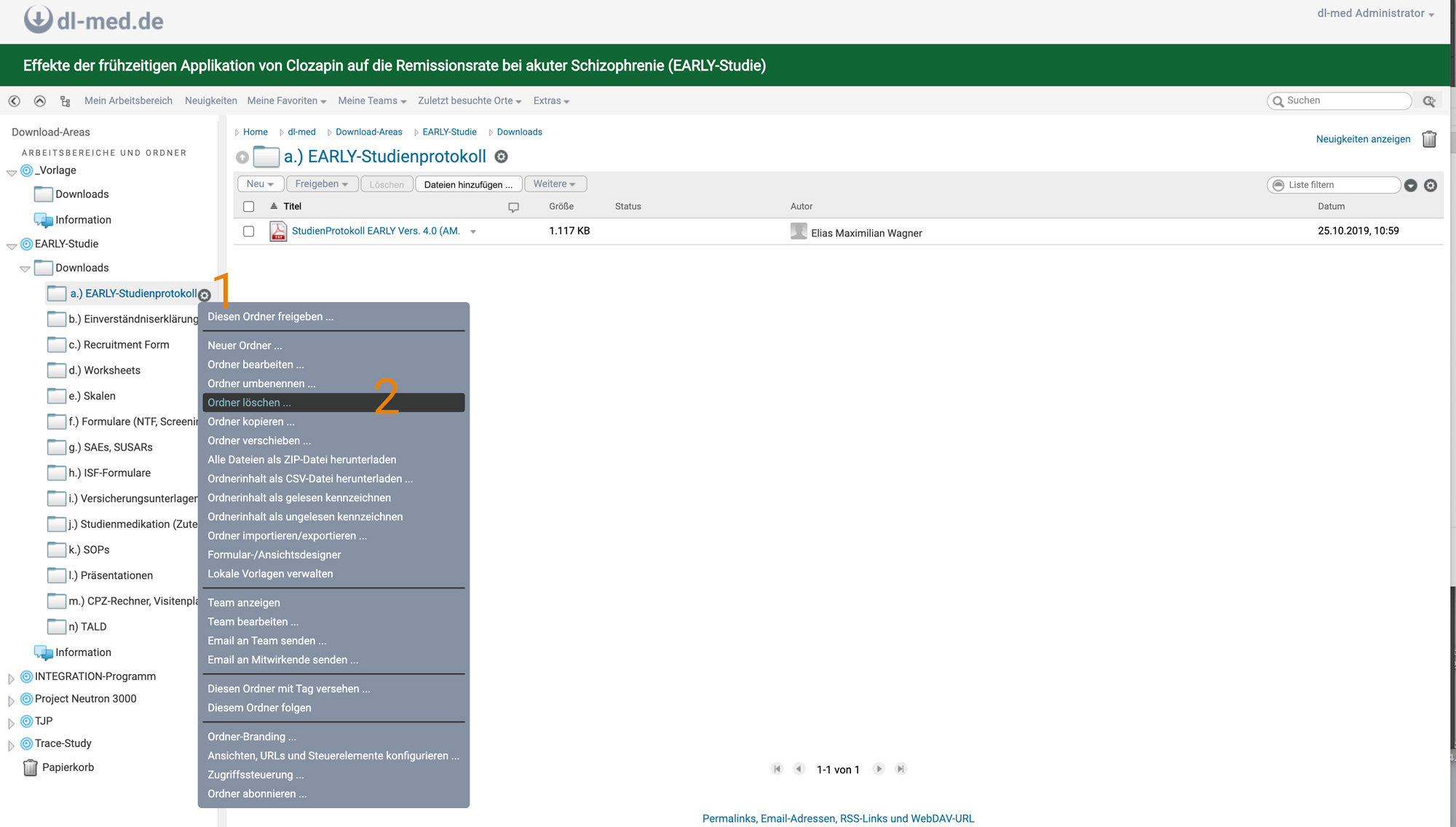
Select the folder to be deleted in the navigation bar (1)
In the properties (gear wheel), click on "Delete folder" (2)
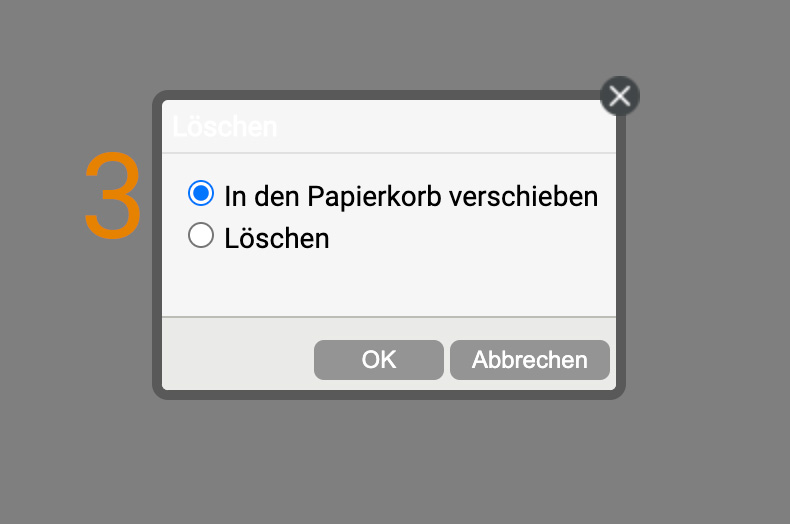
Select "Move to the recycle bin" (3)
dl-med Ordner löschen
dl-med Ordner löschen 2
Delete file
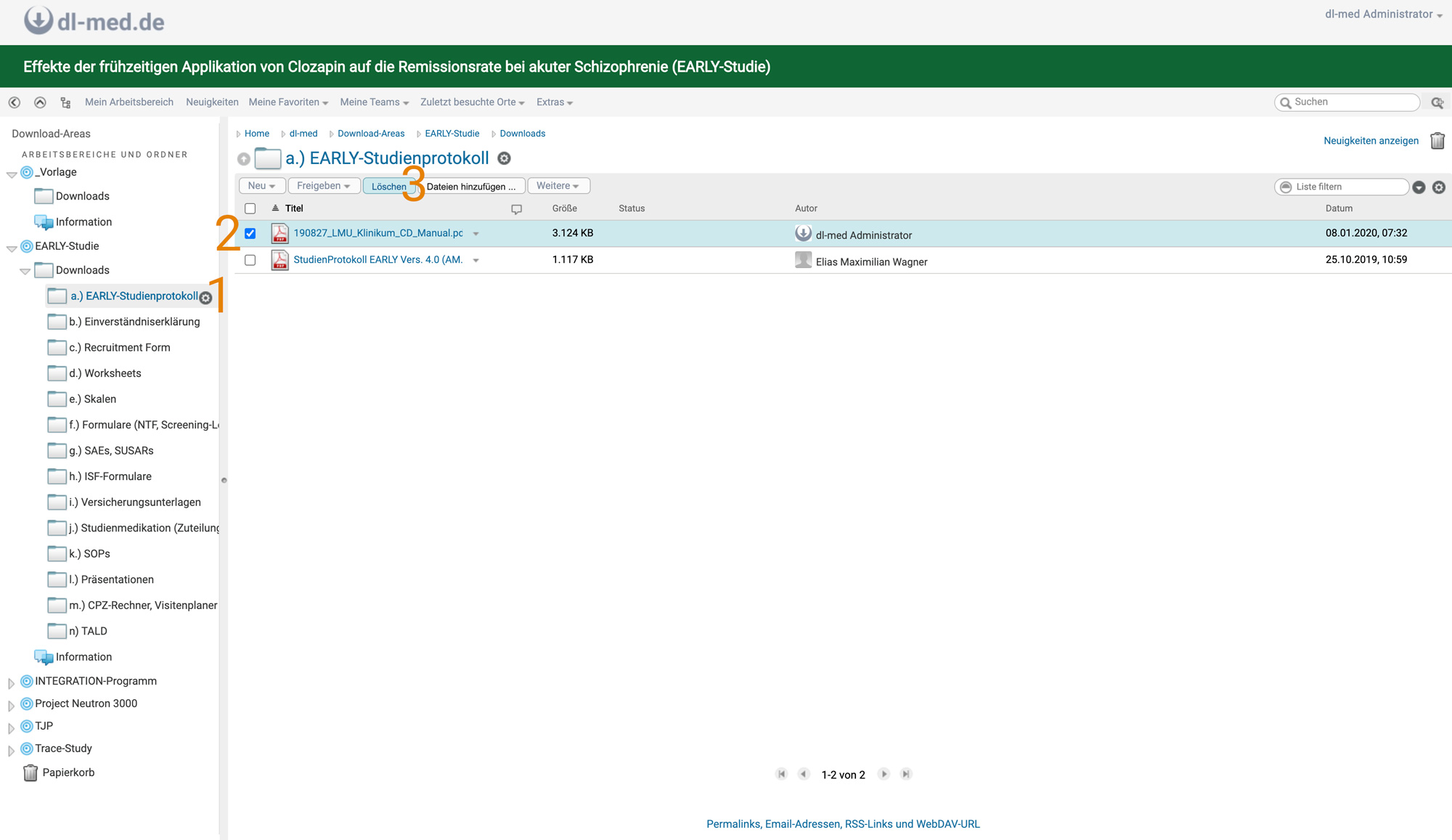
Click on the folder containing the file to be deleted (1)
Check the box in front of the file to be deleted (2)
Click on the "Delete" button (3)
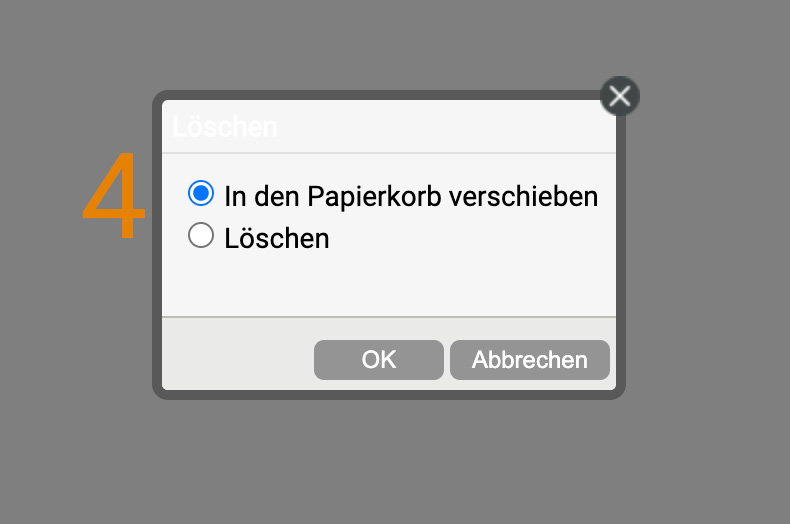
Select "Move to recycle bin" (4)
dl-med Datei löschen
dl-med Datei löschen 2
In order for employees of the hospital and external users / cooperation partners to be able to view the download area, they must be invited or activated by the management.
Attention!
This is where dl-med differs fundamentally from KUM teams. In dl-med, users, whether internal or external, are not authorized or activated with "Edit team" but with "Release this workspace". In contrast to KUM teams, the lines of a download area are entered under "Edit team".
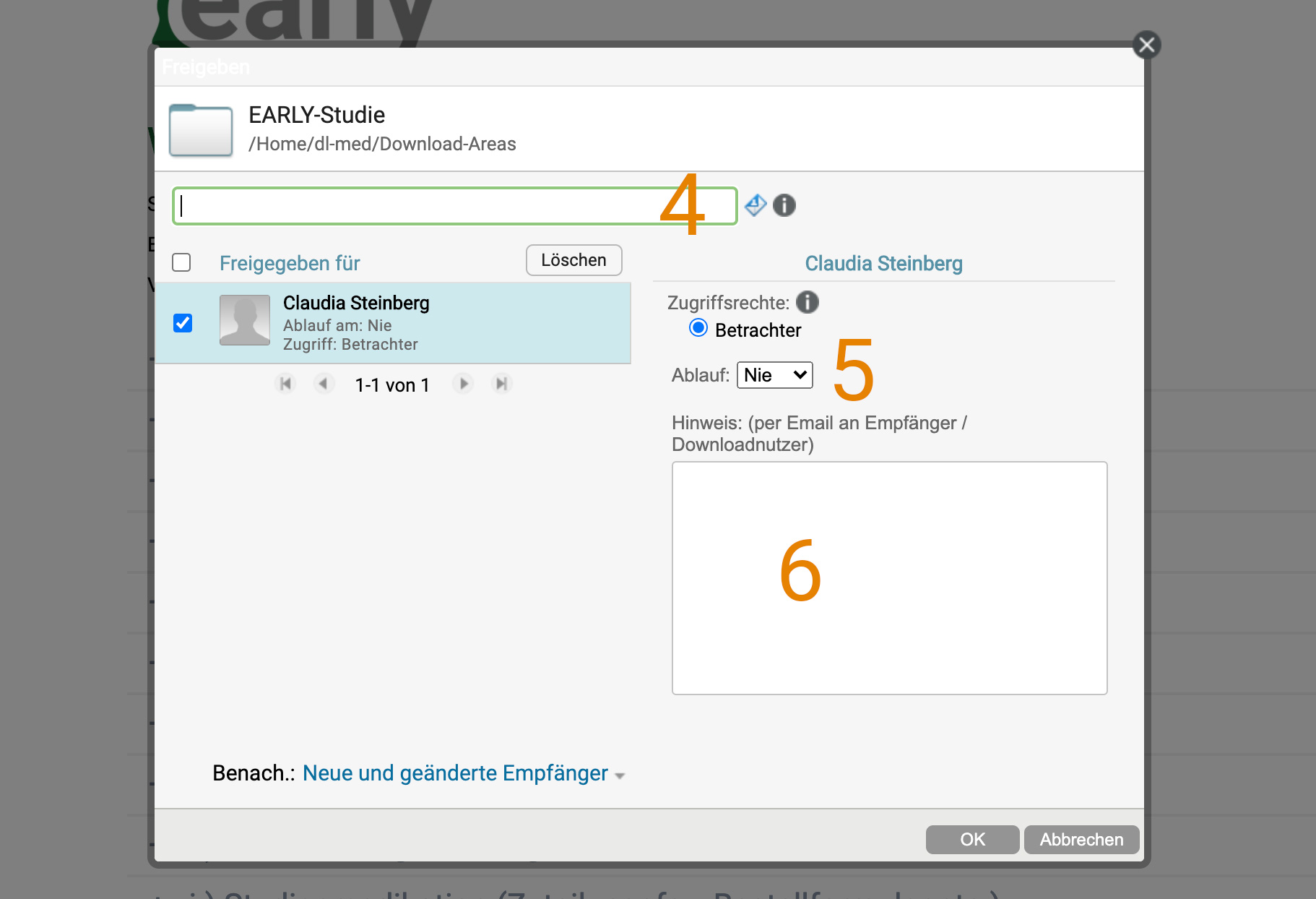
In the download area settings, select "Share this workspace" (1, 2, 3)
In the field that appears, you can now add either the Helios ID (entering the name also works) or an e-mail address of an external person (this can be done via the small e-mail icon). External users will then receive an e-mail notification or invitation to activate their account, where they can set their password and user. If an external person has forgotten their password, they can click on "Problems logging in?" in the login window (4)
As soon as you have added a person, you have the option to set a time limit for the person's access (see "Expiry") and insert an individual notification text. (5 & 6)
dl-med Arbeitsbereich freigegeben
dl-med Benutzer hinzufügen
Add or delete line
Any number of users can be members of the management team. External users can also be leaders as long as at least one member of the line is a member of the KUM with a regular HELIOS ID.
The external password for the HELIOS identifier can be set via the IT portal can be reset
I do not yet have an ID for dl-med
see Apply for dl-med identifier
I cannot log in to dl-med
Before logging into KUM-Teams for the first time, you must have your dl-med ID activated in the IT portal (same activation as for KUM-Teams).
How do I change the language settings?
Open the editing of your profile via Profile > Edit. You can change the language settings in the "Country settings" tab.
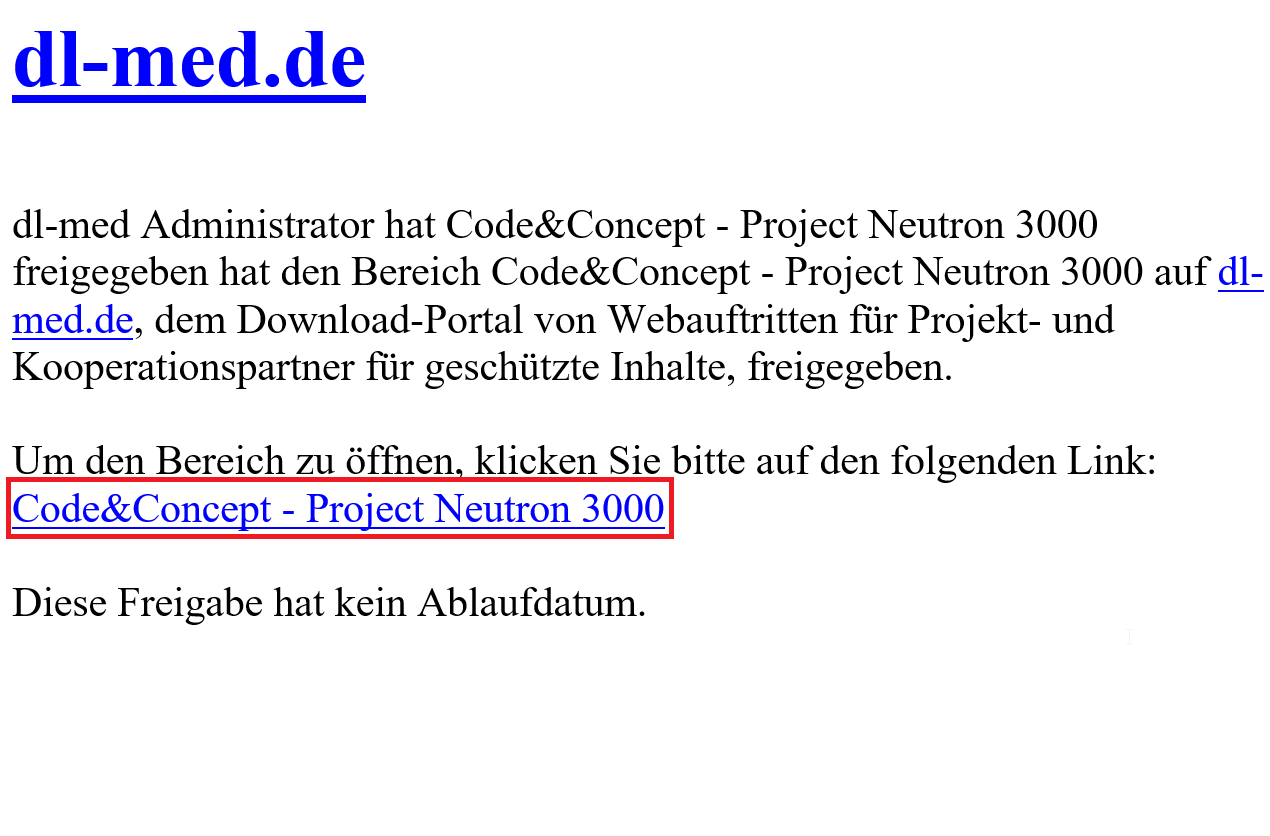
A project has been released for you
You have received an e-mail that a workspace has been released for you.
Click on the link.
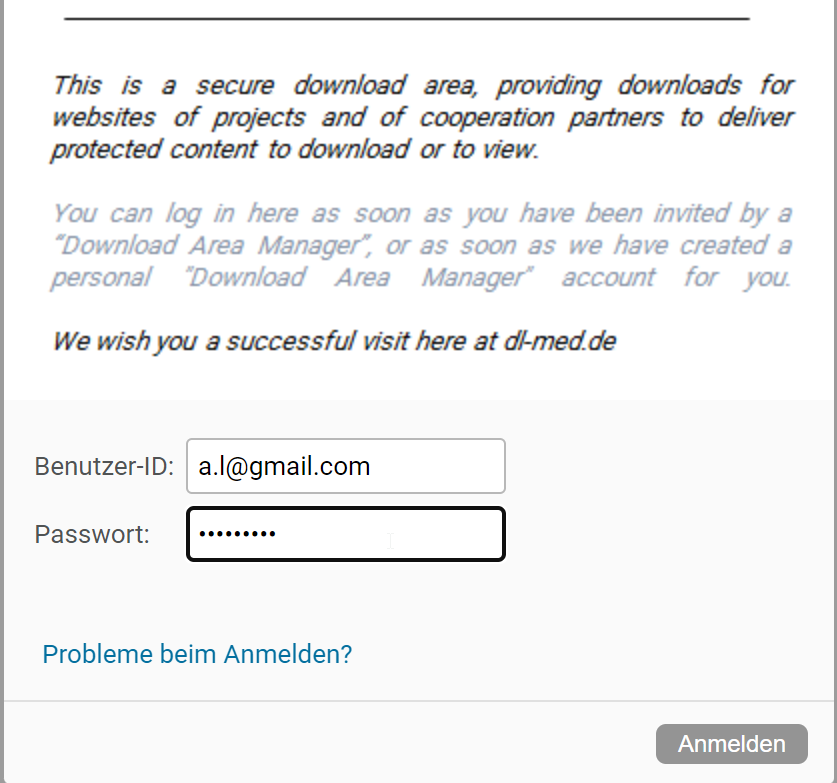
Enter your e-mail address and assign a password of your choice.
Click on Log in.
If you have problems logging in, click on "Problems logging in?" and then enter your e-mail address.
Another e-mail will be sent to you:
Follow the instructions in the e-mail
I have forgotten my password
To do this, click on "Problems logging in?" below the login screen
dl-med Login
Can I create a download area?
Only a member of the LMU Klinikum (employee or enrolled student) with a regular HELIOS ID can initiate the establishment of a download area. As an external cooperation partner, you can become a member of the download area management with full management rights.
How do I get access to dl-med?
see Apply for dl-med identifier
Career day for nursing professions
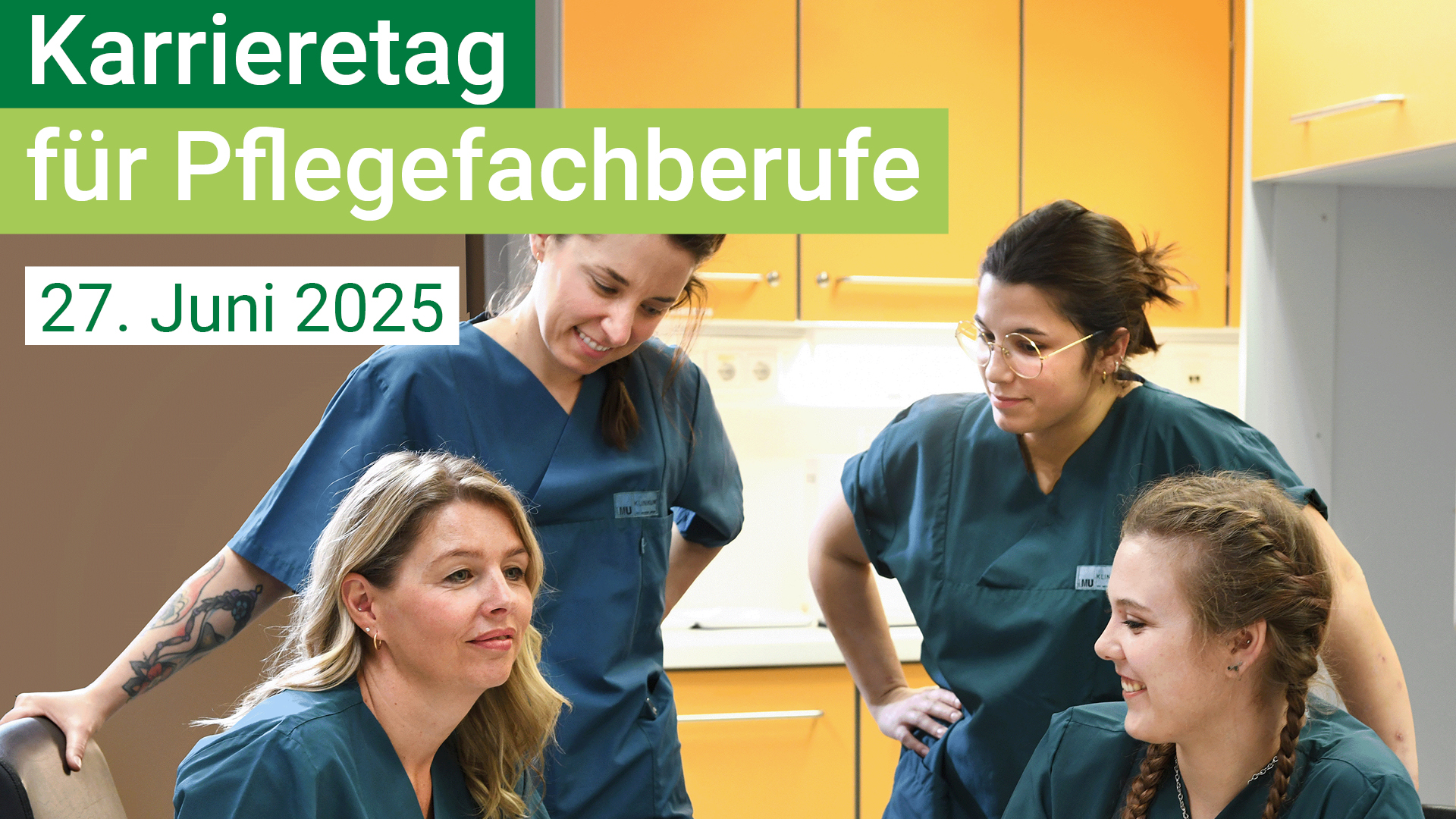
Nursing with heart and expertise: Experience the Nursing Careers Day at LMU Hospital on June 27, 2025 - a day full of inspiring insights into the demanding and holistic everyday life of nursing. Meet experts, discover a wide range of career opportunities and receive exciting information on jobs, training and further education. Come along, exchange ideas with colleagues and let yourself be inspired by nursing science in practice - without obligation and without registration.