Downloads / Quick guides

In the download area we would like to provide you with important files that will support you in setting up intranet and internet presences of the LMU Klinikum.

This includes templates for image processing as well as documentation and Word templates, which we will make available to you for use over time.

You are welcome to send us your suggestions on what you would like to find here in the future at any time via our e-mail contact address.

Image material

KLIBS (Clinic - Internet image collection)

Existing images

Images purchased by the LMU Klinikum from iStock can be downloaded and used on the LMU Klinikum intranet under S:\MIT-KUM-Internet-Bilder\KLIBS\iStock . The image copyrights and the rights to one's own image have been clarified for these images and the images can be used as desired

The purpose of this file storage is that the images purchased by the hospital may and should be used by employees at the hospital for business purposes.


New images

The web editors of the authoring systems WCMS-Fiona and WCMS-Scrivito can select image IDs for the production of header images (and only for this purpose!) at http://www.istockphoto.com/photo and order them via the support e-mail address of the project "New Technologies Internet Intranet for LMU Klinikum Web Presence".

If other institutions of the hospital also buy or have bought iStock contingents, it would make sense to store the purchased images here for the LMU Hospital as well and to make multiple use of them.
If you are in favor of this, please also send your purchased images, which have been cleared in terms of copyright and rights to your own image, to our support e-mail address.

Miscellaneous

Quick guides

At this point we would like to provide you with useful support for setting up and editing websites in the WCMS Fiona of the LMU Klinikum (CMS-Fiona).

WCMS Fiona input wizard Intranet

Operational messages

valid in the "INTRAnet Fiona authoring system"

"To be able to create operating messages, you must be entered in the group of authorized users. To do this, please send an e-mail to our support team."

1 - Registration

... with HELIOS ID from the "New Technologies Internet Intranet" project website

Login Intranet
2 - Creation of a new establishment notification

A new operating message is created using the input wizard. After logging in, the wizard can be called up once or several times.

Button für Anlegen einer Betriebsmeldung
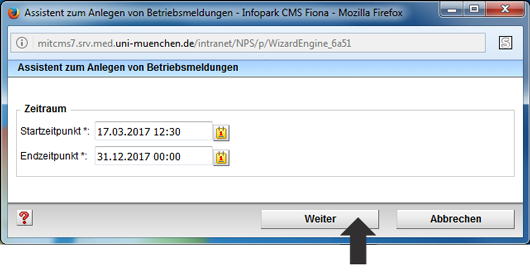
3 - Input page start and end time of the establishment notification
Assistent zum Anlegen einer Betriebsmeldung mit Eingabefeld Zeitraum
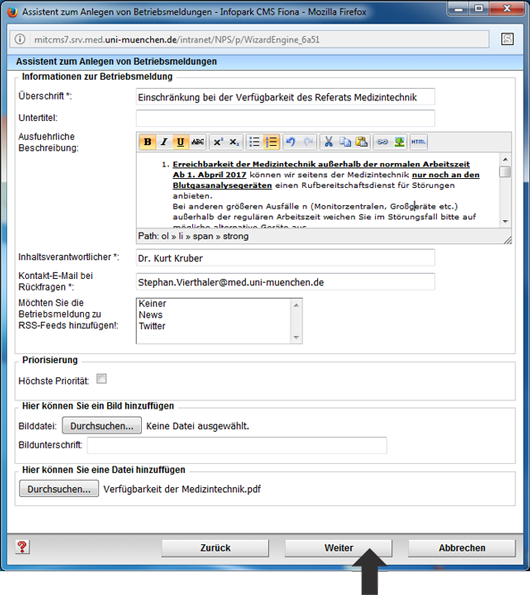
4 - Filling in the data fields

Fields marked with an asterisk are mandatory and must be completed. The other input fields are optional.

Assistent zum Anlegen einer Betriebsmeldung mit verschiedenen Eingabefeldern
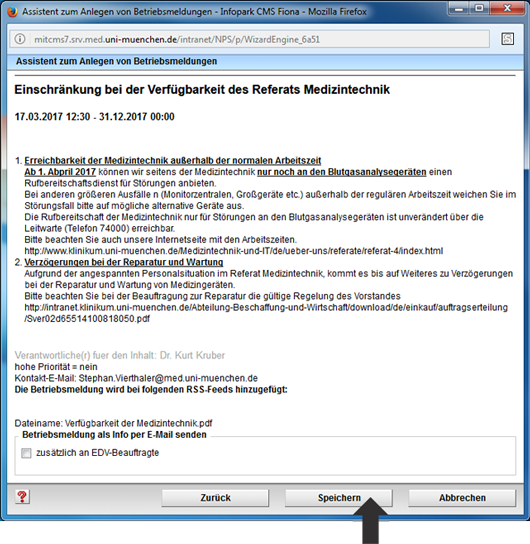
5 - Preview page

Click "Next" to go to the preview page

Vorschauseite einer Betriebsmeldung 
NOTE

Please note that only by using the entry wizard will the entry automatically be visible live in approx. 1 hour.

6 - Log out

When you have finished working with the assistant, please log out.

Abmelde-Button im WCMS-Autorensystem 

valid in the "INTRAnet Fiona authoring system"

"To be able to edit operating messages, you must be entered in the group of authorized users. To do this, please send an e-mail to our support team."

1 - Login

... with HELIOS ID from the "New Technologies Internet Intranet" project website

Login Intranet
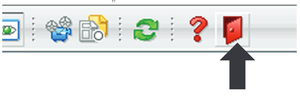
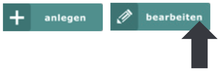
2 - Editing an operation notification

An existing operating message is processed with the input wizard.

Button Betriebsmeldung bearbeiten
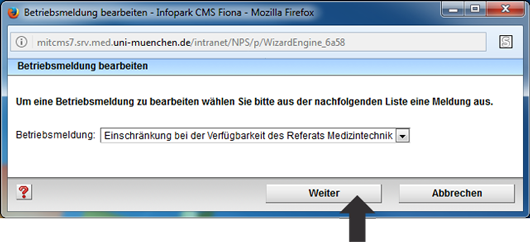
3 - Selecting the operation notification
Eingabeassistent einer Betriebsmeldung, die man ändern möchte
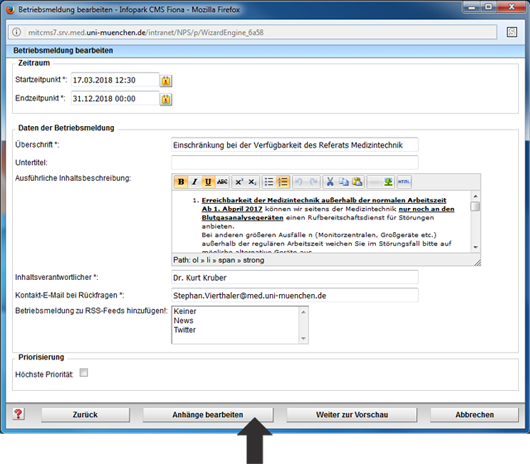
4 - Input page

Edit all relevant information

Betriebsmeldungen bearbeiten mit dem Eingabeassistent 
5 - Change or delete download
Download ändern oder löschen in einer Betriebsmeldung im Eingabeassistent
6 - Input page

Edit all relevant information

Betriebsmeldungen bearbeiten mit dem Eingabeassistent 
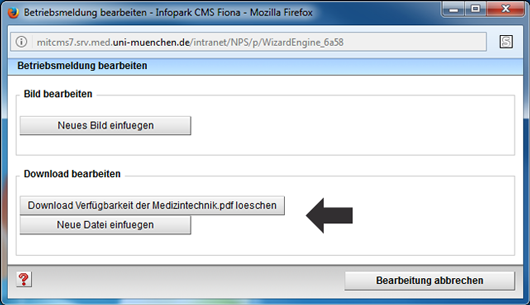
7 - Change or delete download
Download ändern oder löschen in einer Betriebsmeldung im Eingabeassistent

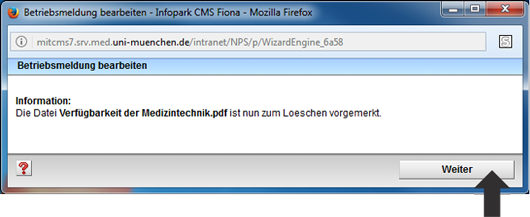
e.g. delete download

Betriebsmeldung im Eingabeassistent um den Download zu löschen

Click "Next" to return to the page with the input fields.

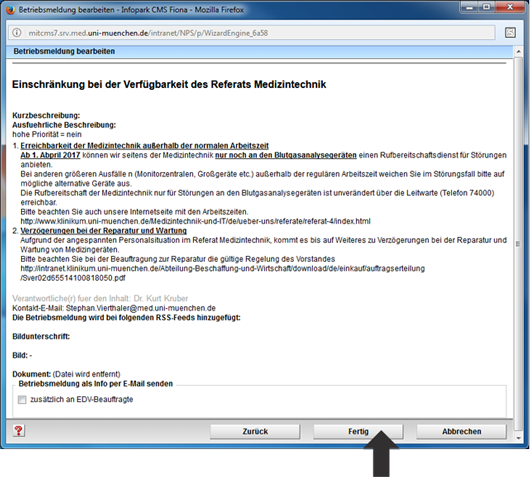
8 - Preview page

Click "Next" to go to the preview page.

Fertige Betriebsmeldung im Eingabeassistent

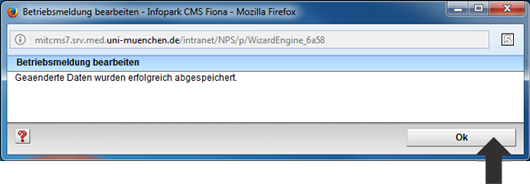
At the end of data entry, click the "Done" button and then "OK".

Abgespeicherte Betriebsmeldung im Eingabeassistent
9 - Finished view of the operating message

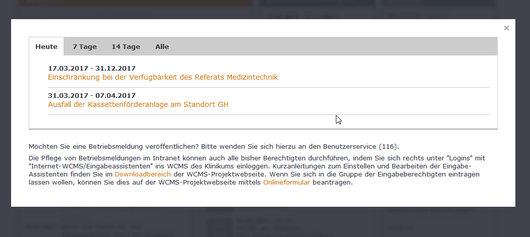
The edited, entered operating message is displayed in the list view.

Download ändern oder löschen in einer Betriebsmeldung im Eingabeassistent
Fertige Betriebsmeldung

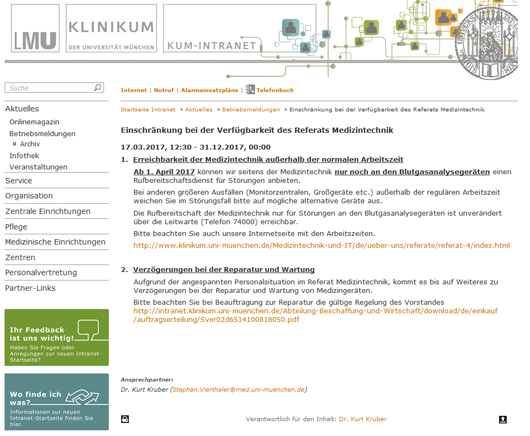
Clicking on the heading takes you to the detailed view of the operating message.

Detailansicht einer Betriebsmeldung
NOTE

Please note that only by using the entry wizard will the entry automatically be visible live in approx. 1 hour.

10 - Log out

When you have finished working with the assistant, please log out.

Abmelde-Button im WCMS-Autorensystem 

Infothek messages

valid in the "INTRAnet Fiona authoring system"

"To be able to create Infothek messages, you must be entered in the group of authorized users. To do this, please send an e-mail to our support team."

1 - Log in

... with HELIOS ID from the "New Technologies Internet Intranet" project website

Login Intranet
2 - Creating a new notification in the Infothek

A new notification is created with the input wizard. After logging in, the wizard can be called up once or several times.

Button im Eingabeassistent um in der Infothek eine Veranstaltung anzulegen
3 - Filling in the data fields

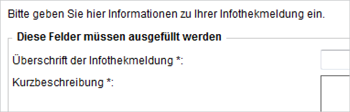
Fields marked with an asterisk are mandatory. The other input fields are optional.

Pflichtfelder im Eingabeassistent in der Infothek
NOTE

The Infothek is divided into 4 categories. These are

  • Absences
  • offers
  • Calls
  • Notes

Please note that each message must be assigned to a category.

4 - Input page

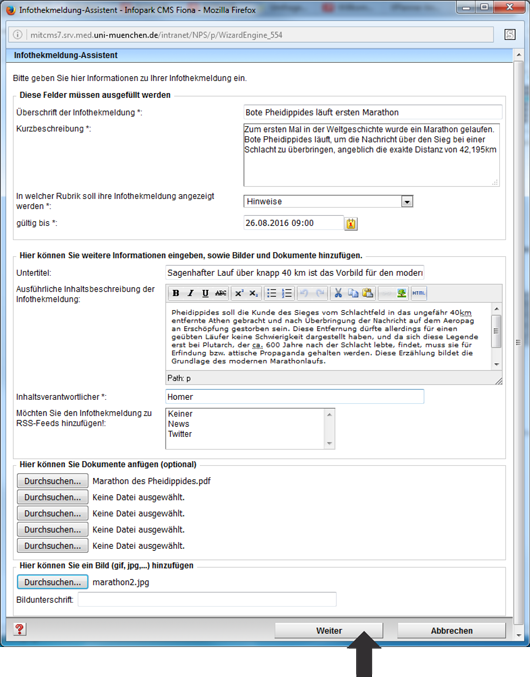
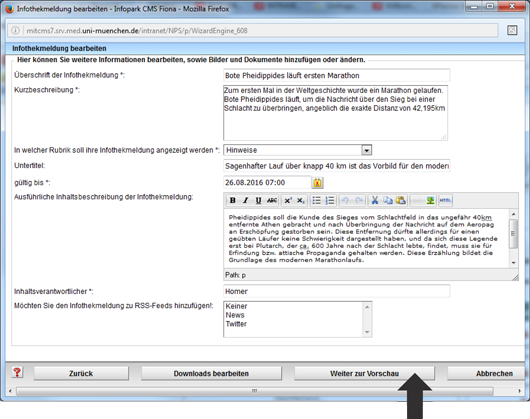
Edit all relevant information

Felder im Eingabeassistent in der Infothek
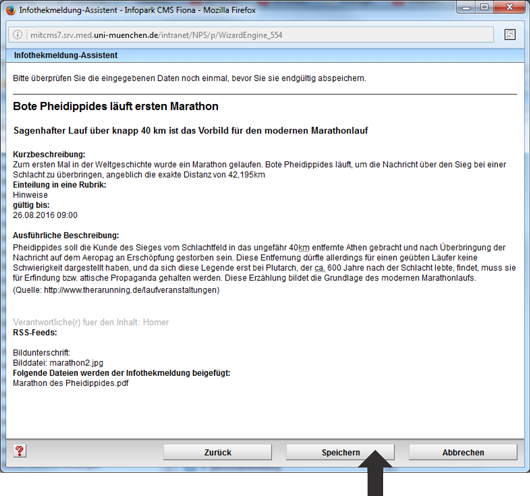
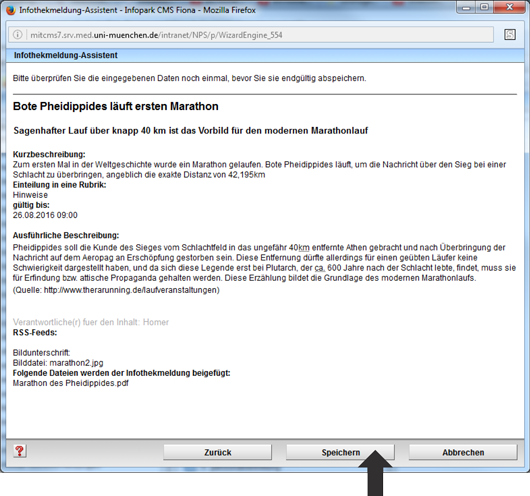
5 - Preview page

Click "Next" to go to the preview page.

Vorschau einer Meldung in der Infothek im Eingabeassistent
6 - Back to the input page

If necessary, you can use the "Back" button to return from the preview page to the input page.

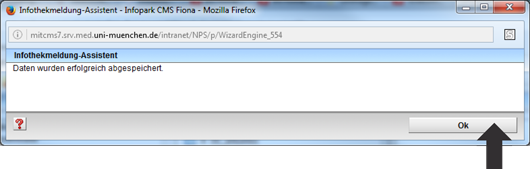
At the end of data entry, click the "Save" button and then "OK" to finish.

Abgespeicherte Meldung in der Infothek im Eingabeassistent
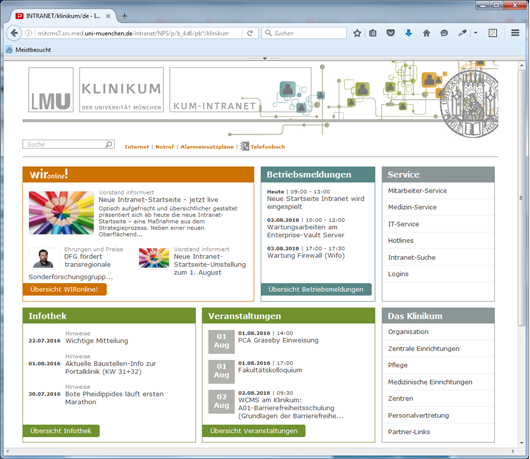
7 - Finished view of the notification in overview

The newly entered message is displayed in the Infothek box.

Intranet-Startseite auf der Portalwebseite
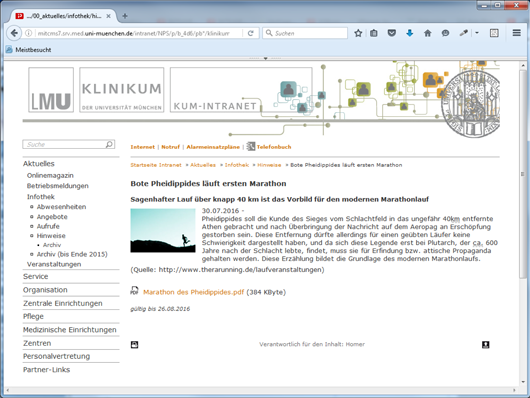
8 - Detailed view of the notification

Click "Next" to go to the preview page.

Detailansicht einer Infothekmeldung

At the end of data entry, click the "Done" button and then "OK".

Abgespeicherte Betriebsmeldung im Eingabeassistent
NOTE

Please note that only by using the entry wizard will the entry automatically be visible live in approx. 1 hour.

9 - Log out

When you have finished working with the assistant, please log out.

Abmelde-Button im WCMS-Autorensystem 

valid in the "INTRAnet Fiona authoring system"

"To be able to edit Infothek messages, you must be entered in the group of authorized users. To do this, please send an e-mail to our support team."

1 - Login

... with HELIOS ID from the "New Technologies Internet Intranet" project website

Login Intranet
2 - Editing a notification in the Infothek

An existing notification is processed with the input wizard.

Button Eingabeassistent Infothek bearbeiten
NOTE

The Infothek is divided into 4 categories. These are

  • Absences
  • offers
  • Calls
  • Notes

Please note that each message must be assigned to a category.

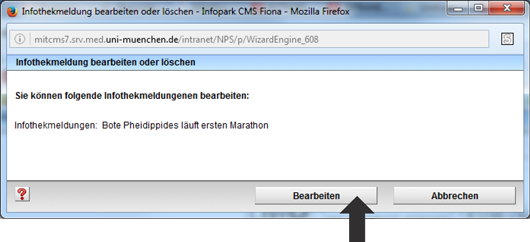
3 - Selecting the notification
Infothekmeldung bearbeiten oder löschen im Eingabeassistent
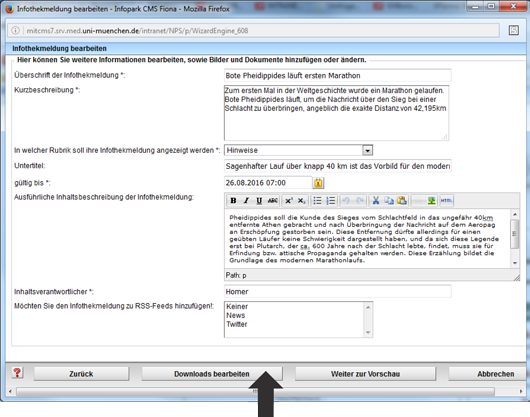
4 - Input page

Processing of all relevant information.
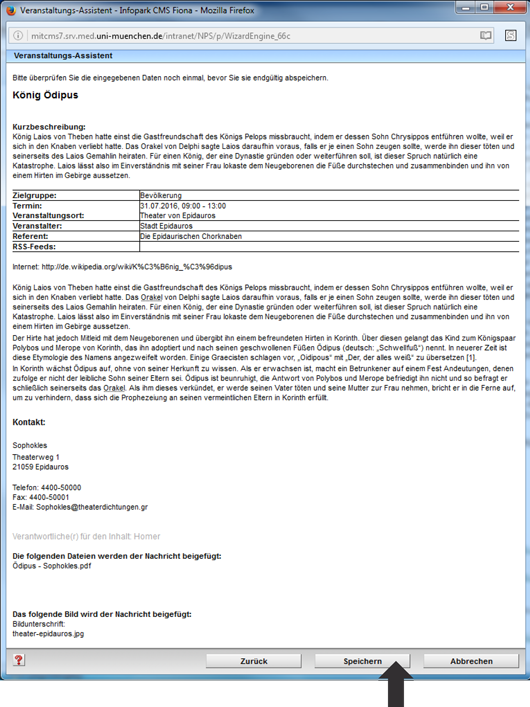
Downloads bearbeiten in einer Infothekmeldung im Eingabeassistent
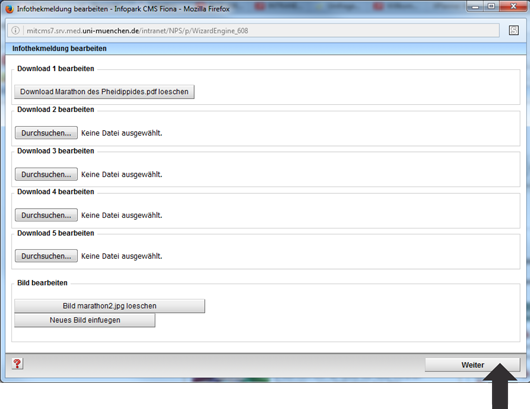
5 - Download, change or delete image
Bild ändern in einer Infothekmeldung im Eingabeassistent

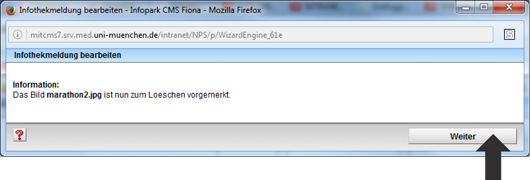
z. E.g. delete image

Infothekmeldung bearbeiten

Click "Next" to return to the input page.

Eingabeseite einer Betreibsmeldung im Eingabeassistent
6 - Preview page

Click "Continue to preview" to go to the preview page.

Download ändern oder löschen in einer Betriebsmeldung im Eingabeassistent

e.g. delete download

Betriebsmeldung im Eingabeassistent um den Download zu löschen

Click "Next" to return to the page with the input fields.

7 - Preview page

Click "Next" to go to the preview page.

Fertige Betriebsmeldung im Eingabeassistent

At the end of data entry, click the "Done" button and then "OK".

Abgespeicherte Betriebsmeldung im Eingabeassistent
8 - Finished view of the notification

The edited, entered message is displayed in the list view.

Vorschauseite des Eingabeassistent in der Infothek

At the end of data entry, click the "Done" button and then "OK".

Abgespeicherte Meldung in der Infothek im Eingabeassistent
9 - Finished view of the message

The edited, entered message is displayed in the Infothek box.

Intranet-Startseite auf der Portalwebseite

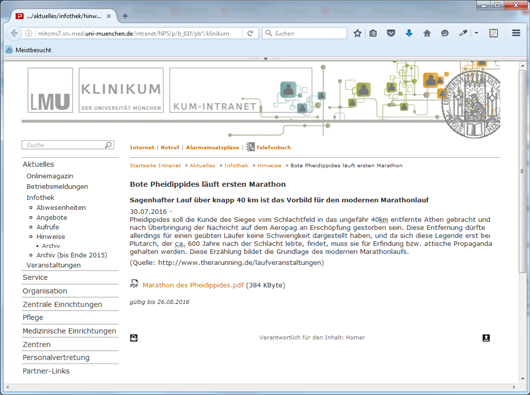
Clicking on the headline takes you to the detailed view of the message.

Detailansicht Infothekmeldung
NOTE

Please note that only by using the entry wizard will the entry automatically be visible live in approx. 1 hour.

10 - Deregister

When you have finished working with the assistant, please log out.

Abmelde-Button im WCMS-Autorensystem 

events

valid in the "INTRAnet Fiona authoring system"

"To be able to create events, you must be entered in the group of authorized users. To do this, please send an e-mail to our support team."

1 - Registration

... with HELIOS ID from the "New Technologies Internet Intranet" project website

Login Intranet
2 - Creating a new event

A new event is created using the entry wizard. After logging in, the wizard can be called up once or several times.

Button im Eingabeassistent um in der Infothek eine Veranstaltung anzulegen
3 - Filling in the data fields

Fields marked with an asterisk are mandatory. The other input fields are optional.

Pflichtfelder einer Veranstaltungsseite im Eingabeassistent
NOTE

Enter all relevant information. There are two types of events:
  • Individual events
  • Series of events
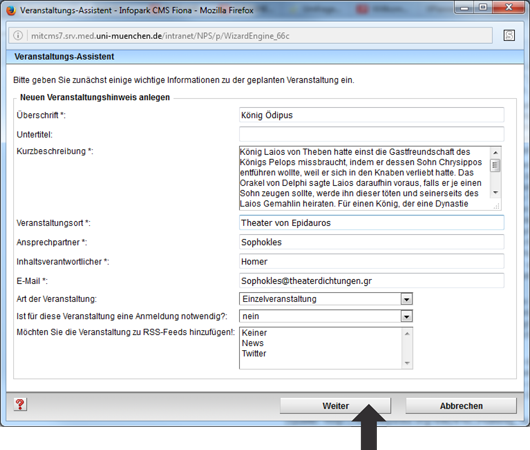
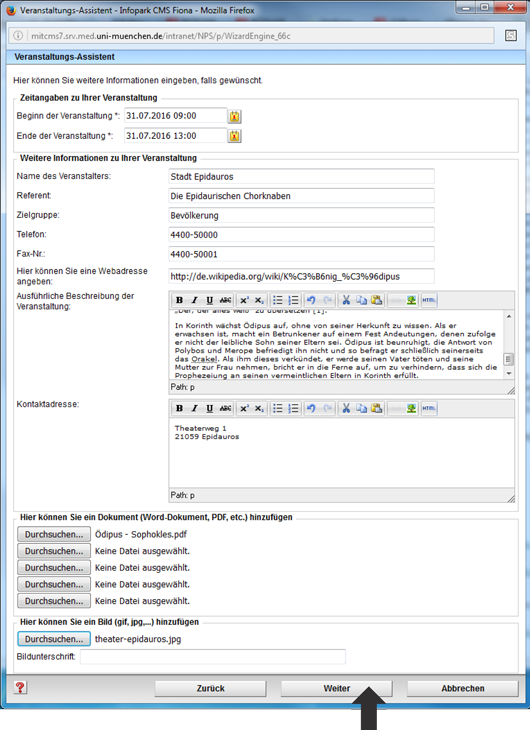
4 - Input page

Edit all relevant information

Eingabefelder einer Veranstaltung im Eingabeassistent

Click "Next" to go to the next input page.

Felder einer Veranstaltung im Eingabeassistent
5 - Preview page (individual event)

Click "Next" to go to the preview page.

If required, the "Back" button takes you from the preview page to the input page.

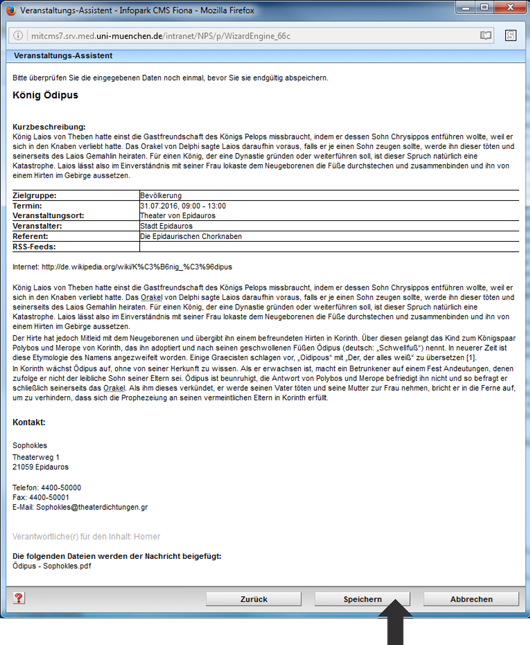
Vorschau einer Veranstaltung im Eingabeassistent

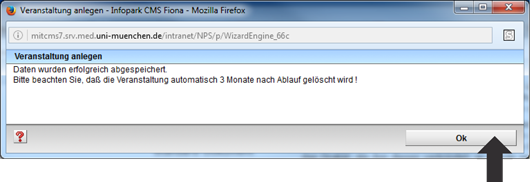
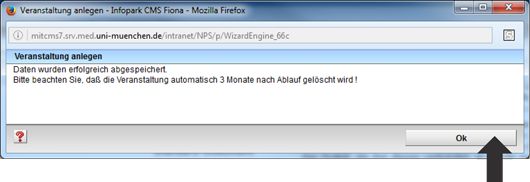
At the end of the data entry, click on the "Save" button and then on "OK".

Veranstaltung bestätigen im Eingabeassistent
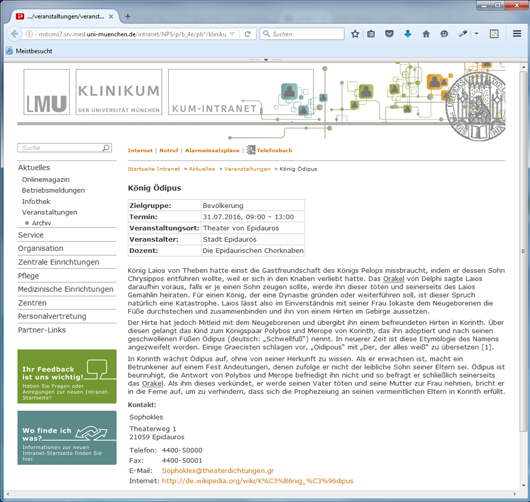
6 - Finished view of the event

The newly entered event is displayed in the list view.

Übersicht Veranstaltungen

Clicking on the headline will take you to the detailed view of the event.

Detailseite einer Veranstaltung
NOTE

Please note that only by using the entry wizard will the entry automatically be visible live in approx. 1 hour.

Please note that it will be automatically deleted 3 months after the end of the event.

7 - Deregister

When you have finished working with the assistant, please log out.

Abmelde-Button im WCMS-Autorensystem 

valid in the "INTRAnet Fiona authoring system"

"To be able to edit events, you must be entered in the group of authorized users. To do this, please send an e-mail to our support team."

1 - Registration

... with HELIOS ID from the WCMS project website "New Technologies Internet Intranet"

Login Intranet
2 - Editing an event in the Infothek

An existing event is edited with the input assistant.

Button Eingabeassistent Infothek bearbeiten
3 - Selecting the event
Auswahl einer Veranstaltung zur Bearbeitung im Eingabeassistent
4 - Input page

Processing of all relevant information.
Veranstaltung bearbeiten im Eingabeassistent
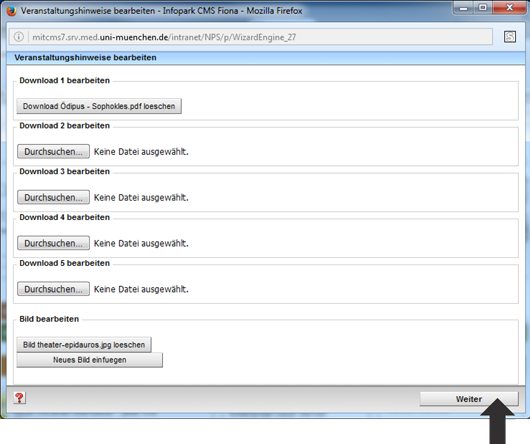
4 - Download, change or delete image
Download bearbeiten bei Veranstaltungen im Eingabeassistent

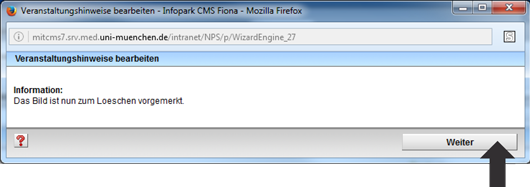
e.g. delete image

Bild löschen bei Veranstaltungen im Eingabeassistent
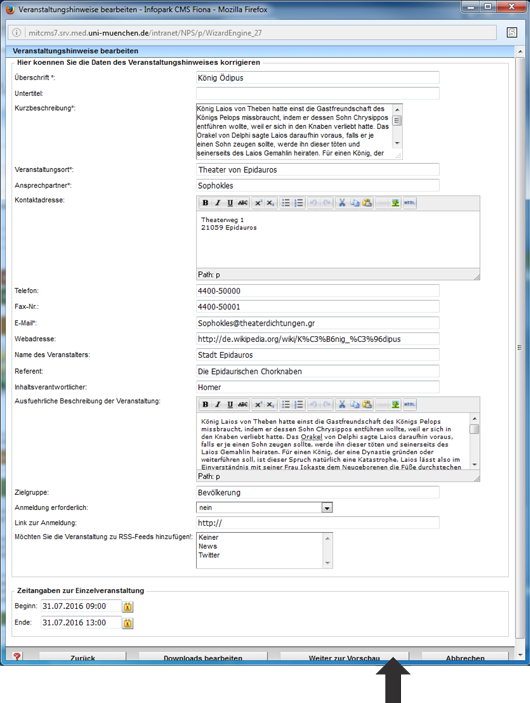
5 - Back on the entry page
Felder einer Veranstaltung im Eingabeassistent
6 - Preview page (single event)

Click "Next" to go to the preview page.

If required, the "Back" button takes you from the preview page to the input page.

Vorschau einer Veranstaltung im Eingabeassistent

At the end of the data entry, click on the "Save" button and then on "OK".

Veranstaltung speichern im Eingabeassistent
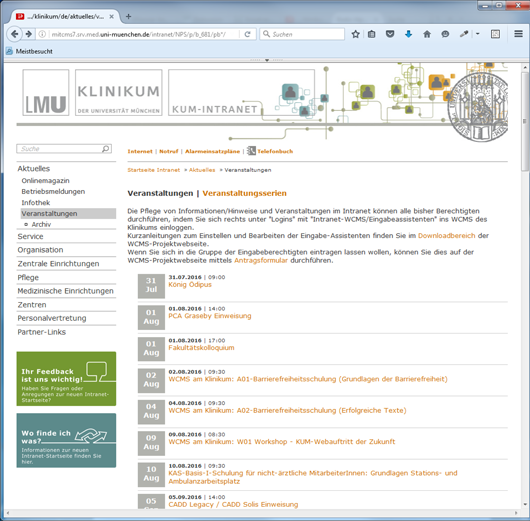
7 - Finished view of the event

The edited, entered event is displayed in the list view.

The following illustrations show the list view and the complete view.

Übersicht Veranstaltungen

Clicking on the headline will take you to the detailed view of the event.

Veranstaltungdetailseite auf der Intranet Portalwebseite
NOTE

Please note that only by using the entry wizard will the entry automatically be visible live in approx. 1 hour.

Please note that the entry will be automatically deleted 3 months after the end of the event.

8 - Log out

When you have finished working with the assistant, please log out.

Abmelde-Button im WCMS-Autorensystem 

Menu plan

valid in the "INTRAnet Fiona authoring system"

1 - Registration

... with HELIOS ID from the "New Technologies Internet Intranet" project website

Login Intranet
2 - Creating a new meal plan

A new meal plan is created using the input wizard. After logging in, the assistant can be called up once or several times.

Button im Eingabeassistent um in der Infothek eine Veranstaltung anzulegen
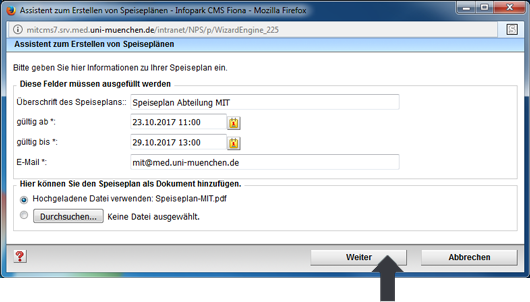
3 - Input page

Enter all relevant information.
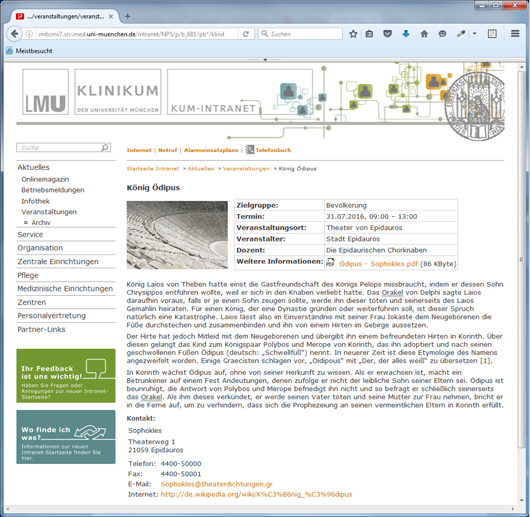
Assistent zum Erstellen von Speiseplänen
4 - Preview page

Click "Next" to go to the preview page.

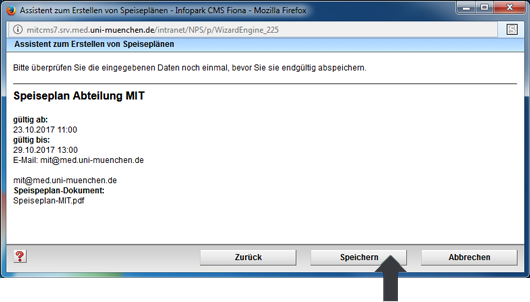
Vorschau eines Speiseplans im Eingabeassistent

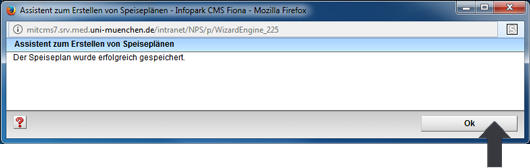
At the end of the data entry, click on the "Save" button and then on "OK".

Gespeicherter Speiseplan im Eingabeassistent

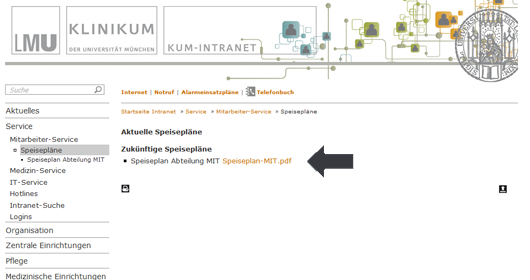
The newly entered meal plan is displayed in the list view.

Fertige Ansicht eines Speiseplans
NOTE

Please note that only by using the entry assistant will the entry automatically be visible live in approx. 1 hour.

Please note that the menu will be automatically deleted 3 months after it expires.

5 - Log out

When you have finished working with the assistant, please log out.

Abmelde-Button im WCMS-Autorensystem 

valid in the "INTRAnet Fiona authoring system"

1 - Log in

... with HELIOS ID from the "New Technologies Internet Intranet" project website

Login Intranet
2 - Editing the menu

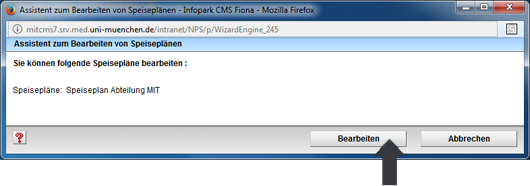
An existing meal plan is edited with the input assistant.

Button Eingabeassistent Infothek bearbeiten
3 - Selecting the meal plan
Auswahl des Speiseplans im Eingabeassistent um den Speiseplan zu ändern/ bearbeiten
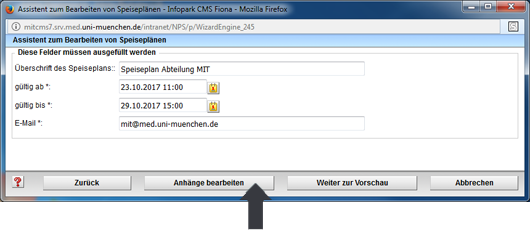
4 - Input page

Processing of all relevant information.
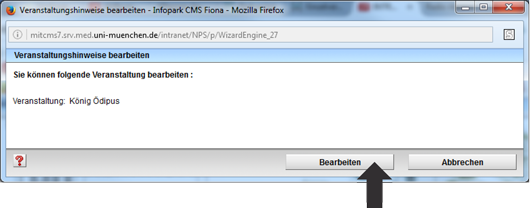
Anhänge bearbeiten beim Speiseplan im Eingabeassistent
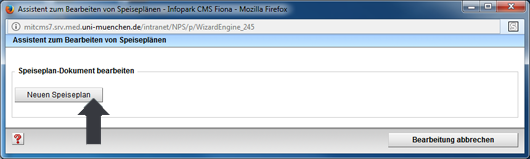
4 - Edit attachment
Neuen Speiseplan im Eingabeassistent bearbeiten

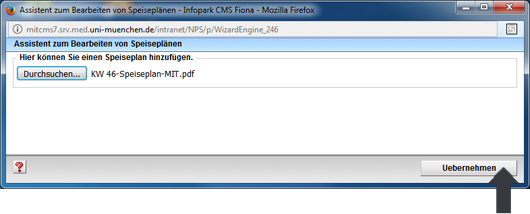
Select new PDF from hard disk

Dokument zum Speiseplan hinzufügen im Eingabeassistent
5 - Back on the input page
Vorschau eines Speiseplans im Eingabeassistent
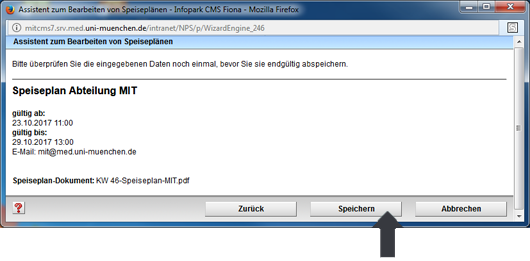
6 - Preview page

Click "Continue to preview" to go to the preview page.
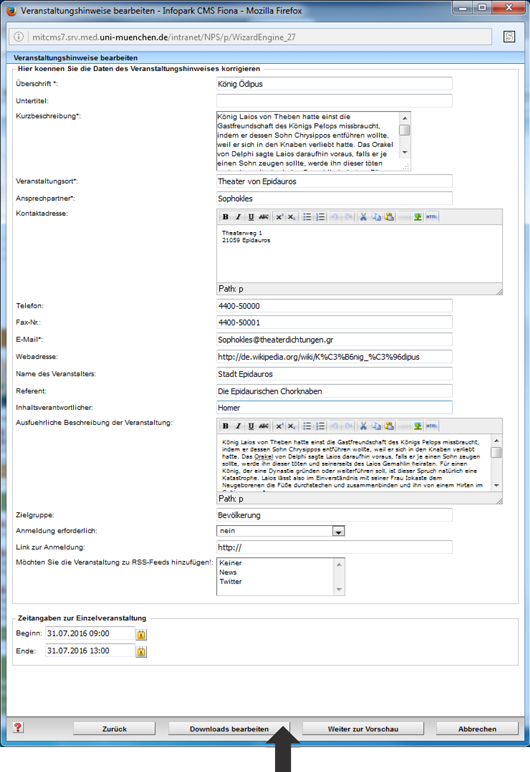
If required, the "Back" button takes you from the preview page to the input page.

Vorschau des Speiseplans im Eingabeassistent

At the end of the data entry, click on the "Save" button and then on "OK".

Gespeicherter Speiseplan im Eingabeassistent
7 - Finished view of the entered meal plan

The edited, entered meal plan is displayed in the list view.

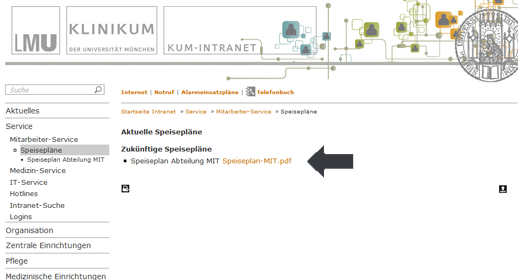
Ansicht eines fertigen Speiseplans auf der Portalwebseite im Intranet

Click on the PDF to open the menu.

NOTE

Please note that only by using the entry assistant will the entry automatically be visible live in approx. 1 hour.

Please note that the menu will be automatically deleted 3 months after it expires.

8 - Log out

When you have finished working with the assistant, please log out.

Abmelde-Button im WCMS-Autorensystem 

WCMS template special case

video

valid in the "INTRAnet Fiona authoring system"

1 - Log in

... INTRAnet with HELIOS ID from the "New Technologies Internet Intranet" project website

Login Intranet

or

... INTERnet from the project website "New Technologies Internet Intranet"

Login Internet
2 - Upload video

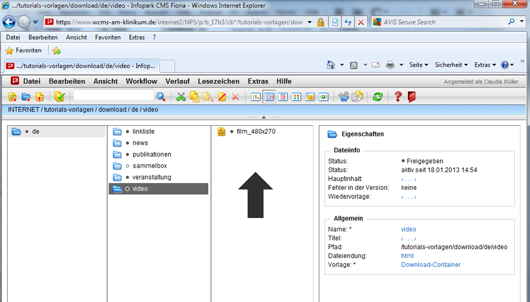
Videos are uploaded in the download folder. Path: xy-corepackage/download/en/[your download container]

Download-Container im WCMS-Autorensystem
NOTE

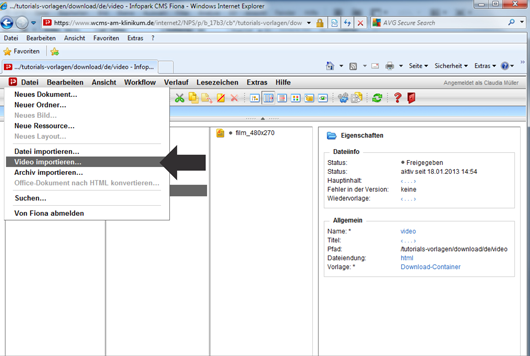
Procedure: File > Import video
NOT
File > Import file

REASON

With this procedure, videos are no longer stored in the system, but on a separate media server. This means that your videos load much faster on your website.

Video importieren im WCMS-Autorensystem
3 - Template video

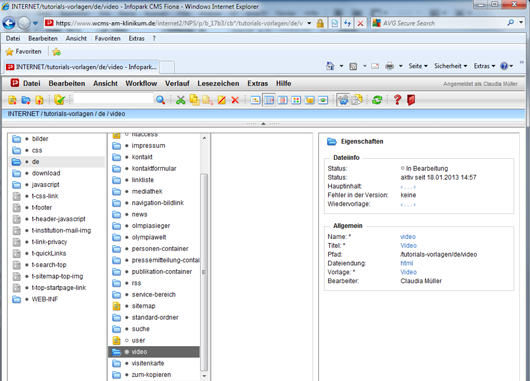
Switch from the download folder to the de folder and then to the desired position where the video template is to be placed.

Ort für die Videoablage im WCMS-Autorensystem
4 - Create video template

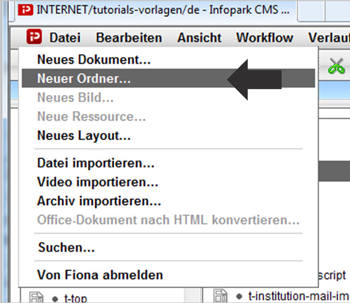
Either via the menu bar with "Create new folder" ...

Video anlegen im WCMS-Autorensystem

or...

...via the toolbar with the blue folder icon

5 - Input fields

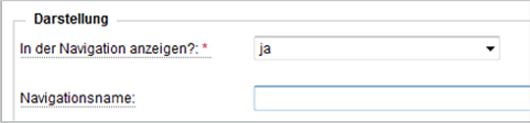
Complete the input fields in the Display and Content field groups. Mandatory fields must be filled in!

Pflichtfelder im Eingabeassistent

At the end of data entry, click the "Save" button and then "OK".

4 - Finished view of the video template

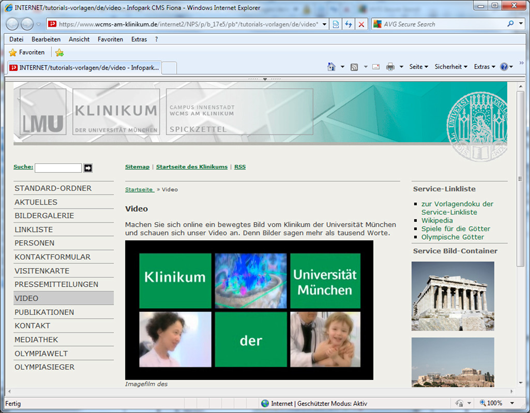
Switch from the column view to the separate preview.

Vorschau eines Videos im WCMS-Autorensystem

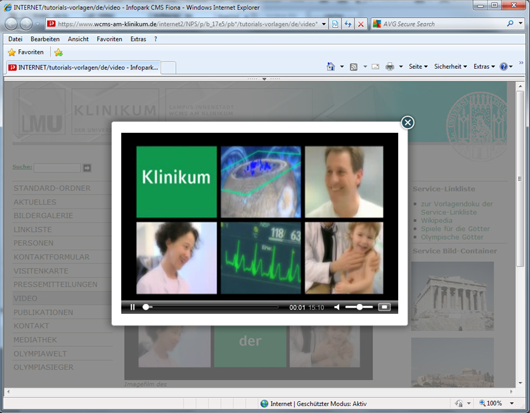
Click on the preview image to open the video in the player.

Video abspielen im Player auf der Webseite
NOTE

Once the video template has been completed, it must also be released.

If a video is to be replaced, this cannot be done in the usual way using the "Replace" function when importing. The new video must also be uploaded using the "Import video" function. The path from the video template must be reset to the uploaded video. The old video can then be deleted.

Originally translated with DeepL